

Table content
LimeSurvey 7 introduces a clearer workflow through the creation, sharing, and analyzing of surveys, while keeping the advanced controls and flexibility that LimeSurvey users rely on.
Its most visible change is the redesigned survey editor. Previously available only in LimeSurvey Cloud, it is now also included in LimeSurvey 7 Community Edition and is the default editor in both editions.
The editor brings survey structure, content, and settings into one place. New survey flow steps connect Editor, Share, and Results, so you can move from building a survey to distributing it and reviewing responses without searching through separate menus.
Survey building
Your survey at the center. The controls you need within reach.
LimeSurvey can handle a quick feedback form and a complex research project. That breadth is one of the reasons people choose it. Over time, however, the platform also became harder to navigate than it needed to be.
LimeSurvey 7 tackles that problem directly. It makes common work easier to find and complete without taking away the advanced options experienced users depend on.
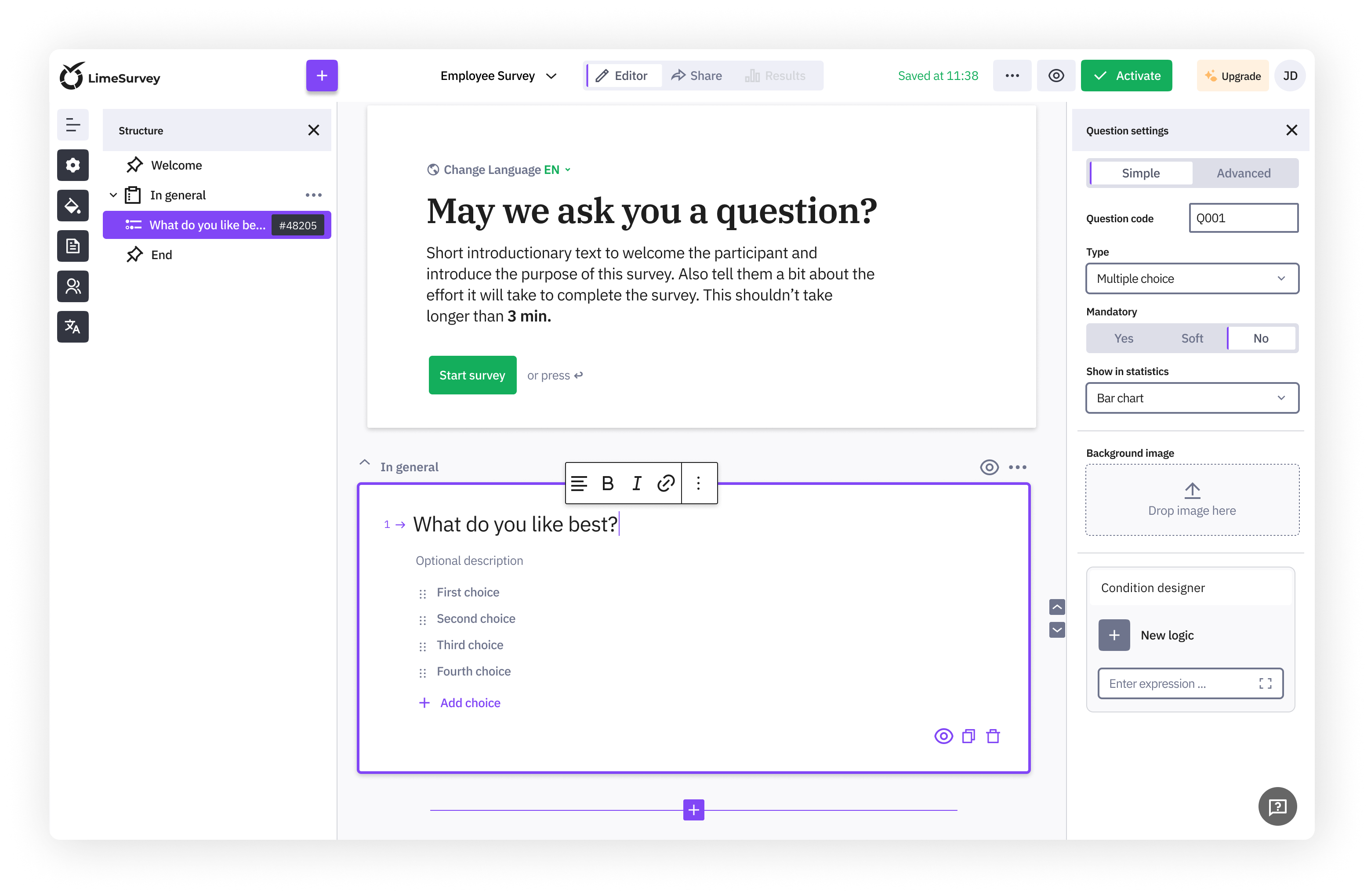
The new LimeSurvey editor brings the main parts of survey creation into one view. Your survey remains at the center, with its structure, settings, and key actions arranged around it.
The panels on both sides can be collapsed whenever they are not needed. This creates more space for your survey while keeping the relevant tools available when you need them.
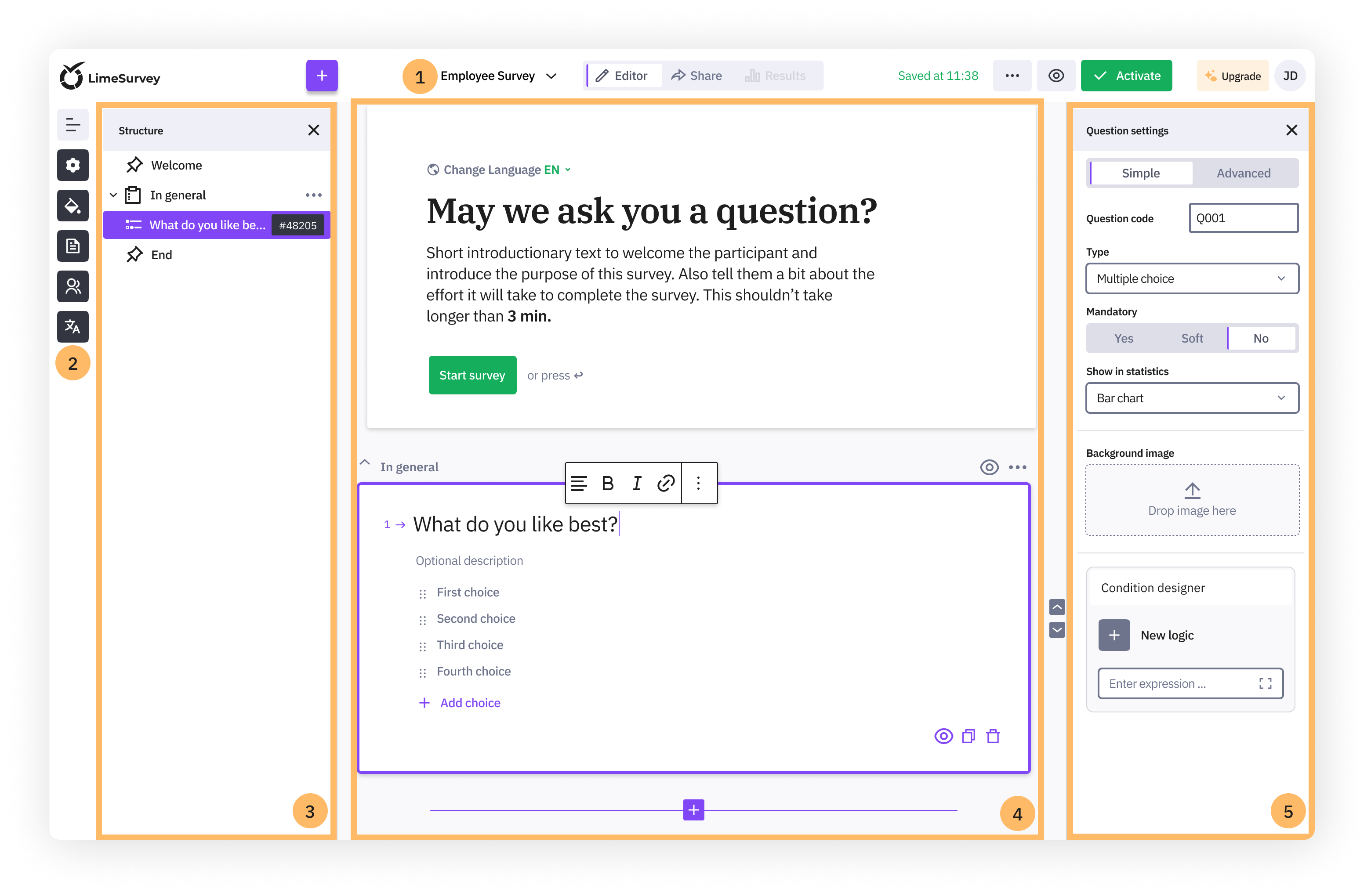
The editor is organized into five main areas:
-
Top bar
The top bar contains actions that apply to the survey as a whole. You can add a question or group, update the survey title, jump between sections with the survey flow steps, and activate or deactivate the survey without leaving the editor.
-
Left toolbar
The left toolbar provides access to your survey structure, survey settings, the survey menu, users and permissions, theme options, and quick translations.
-
Structure panel
The structure panel shows the content of your survey in one overview. You can move between questions and groups, reorder them, and open the welcome and end pages directly.
-
Editorial area
The editorial area is where you create and edit your survey content. You can write welcome messages, add questions and groups, and edit their content directly.
-
Question settings
The question settings appear beside the active question. The "Simple" tab contains the most commonly used options, while the "Advanced" tab provides access to the complete range of settings.
Select a question in the structure panel, edit it in the center, adjust its settings beside it, and continue through the survey without losing your place. This reduces the need to move between separate pages while keeping the full range of LimeSurvey settings available.
Survey flow: Create, share and analyze your survey
The new survey flow steps connect the three main stages of working with a survey and keep them visible in the top bar.
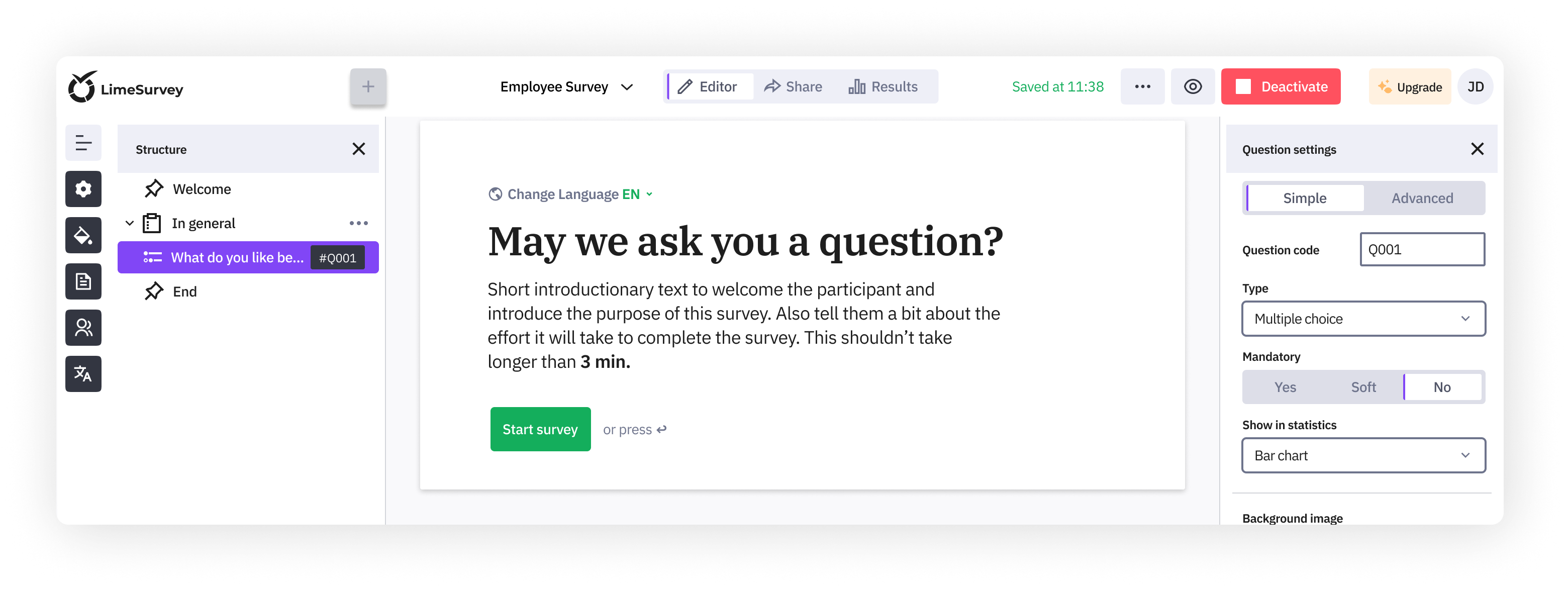
Use the "Editor" section to create your survey, organize its structure, and configure your questions. Open "Share" to manage access and distribution. Activate your survey to make the "Results" section available, where you can review the collected data and access your statistics as responses arrive.
Editor, Share, and Results remain directly accessible throughout the survey workflow, giving you a clear path from the first question to the final analysis.
Survey creation shortcuts
The editor connects survey creation with direct navigation through your survey structure.
-
Automatic navigation: Select a question in the Structure panel and the editor automatically scrolls to it, highlights it and opens it for editing.
-
Drag and drop: Rearrange questions and groups directly within the survey structure. Changes are immediately visible in the editorial area.
-
Question navigation: Use the up and down navigation controls to move between questions without losing your current position in the survey.
-
Edit and preview modes: When a question is active, you can edit its text and settings directly. Click outside the question to return it to its preview state and review your changes in context.
Quick actions provide direct access to common tasks, allowing you to add, duplicate, or delete questions without opening another menu.
Simple and advanced question settings
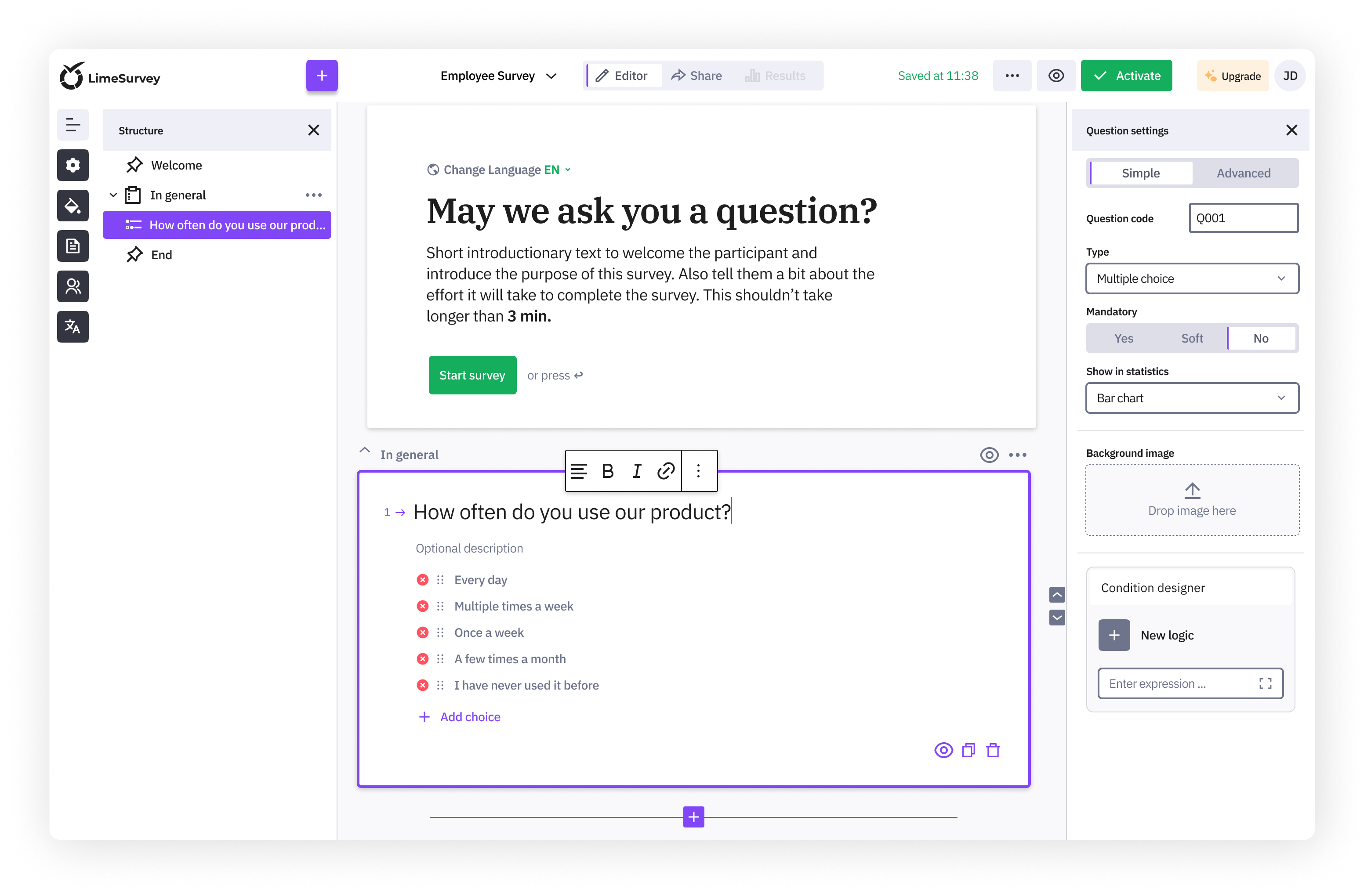
Question settings appear beside the selected question and are separated into "Simple" and "Advanced". You can switch between both views at any time without leaving the question you are editing.
The "Simple" view focuses on the settings used most often. Change the question type, make a question mandatory, and adjust its main display options without working through the complete list of available settings. Changes are reflected immediately in the editorial area.
When you need more control, switch to "Advanced" to access the complete range of settings available for the selected question type.
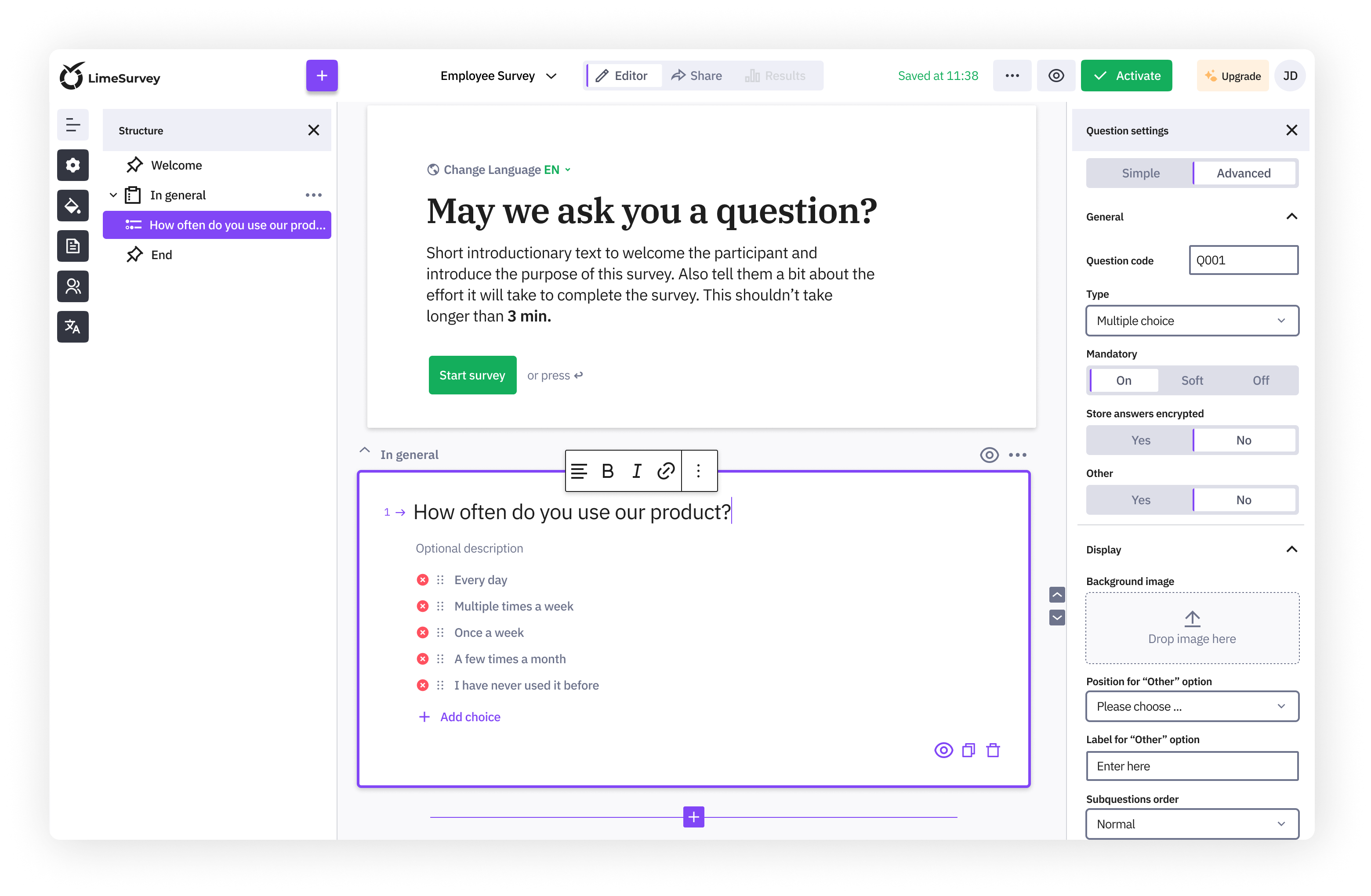
This separation keeps common tasks focused while preserving the flexibility and detailed configuration options LimeSurvey offers.
Customization
Make it yours without breaking your flow.
Theme options and quick translations remain available from the left toolbar, keeping design and language controls close to the survey structure.
LimeSurvey 7 also extends rich-text editing across welcome and end-screen text, question titles, answers, and subquestions. This makes it easier to shape the content and presentation of a survey without interrupting the survey-building flow.
Sharing
Public link or controlled access. You decide.
Once your survey is activated, the Share section brings the main distribution and access options into one overview. You can select the survey language and decide how participants should access your survey.
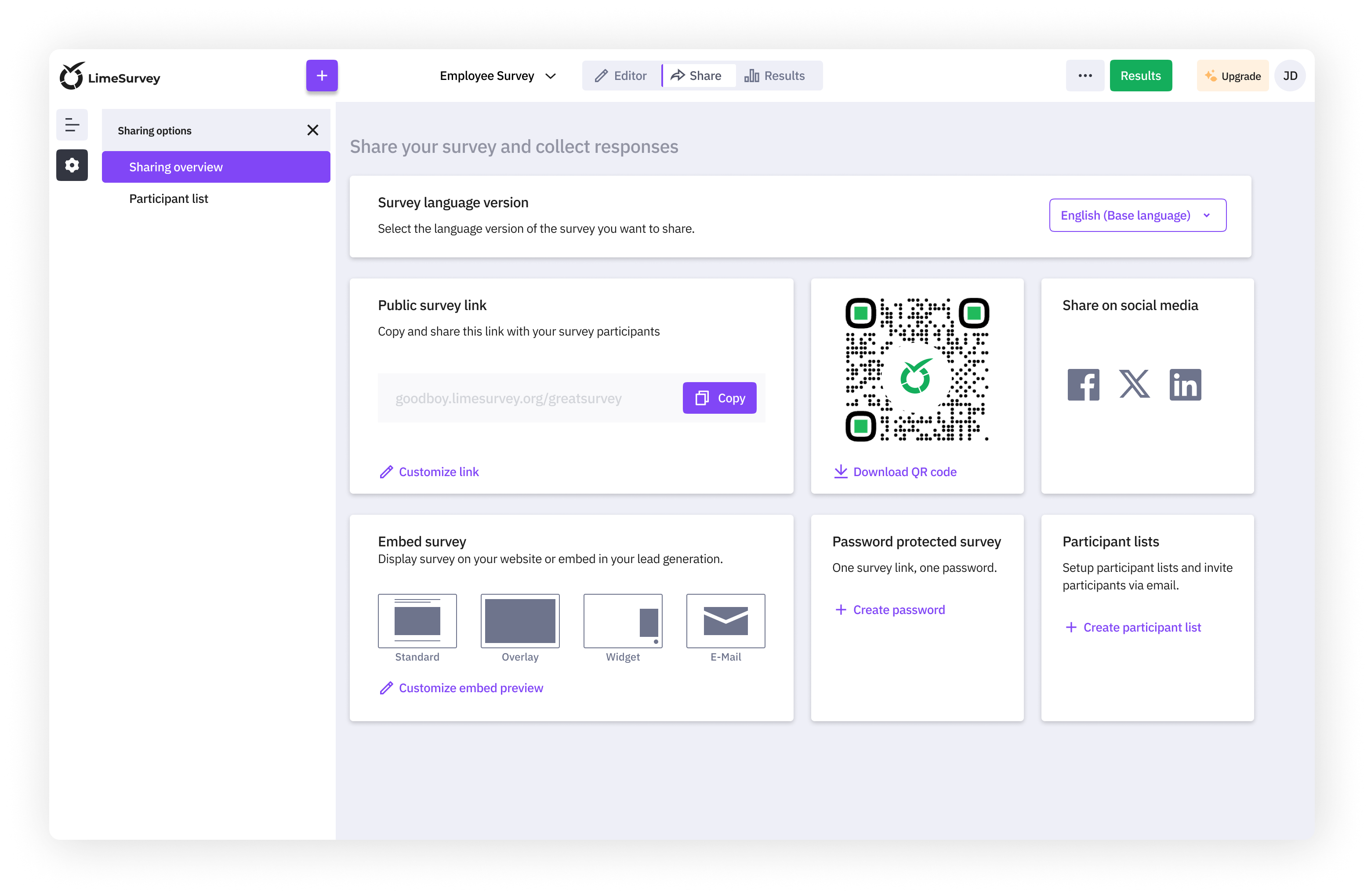
Share your survey through a customizable link, QR code or social media, or embed it directly on your website. For controlled participation, you can protect the survey with a password or create a participant list and send invitations by email.
Results
Progress, responses, and patterns in one place.
The new results section
The "Results overview" gives you a clear picture of how your survey is progressing. It brings the most important metrics, recent activity, and latest responses together in one place.
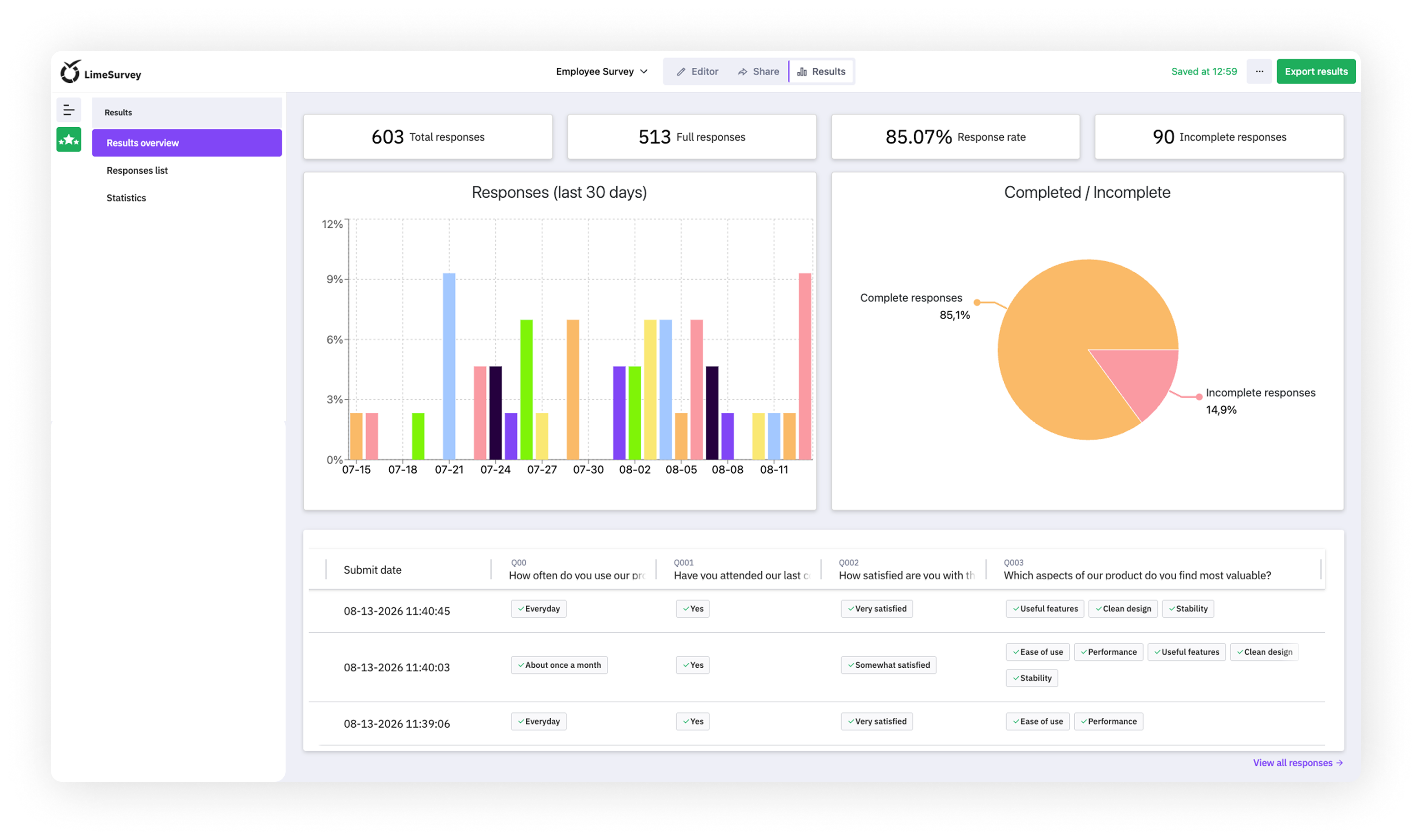
See the total number of responses, compare complete and incomplete submissions, and review the completion rate of your survey. Charts show how response activity has developed over the last 30 days, while a preview of the latest responses gives you direct access to the collected data.
For a closer look at individual submissions, open the response list. To explore patterns and distributions across your questions, continue to Statistics.
The new statistics
The Statistics section organizes your survey results by question and presents them in a clear visual overview.
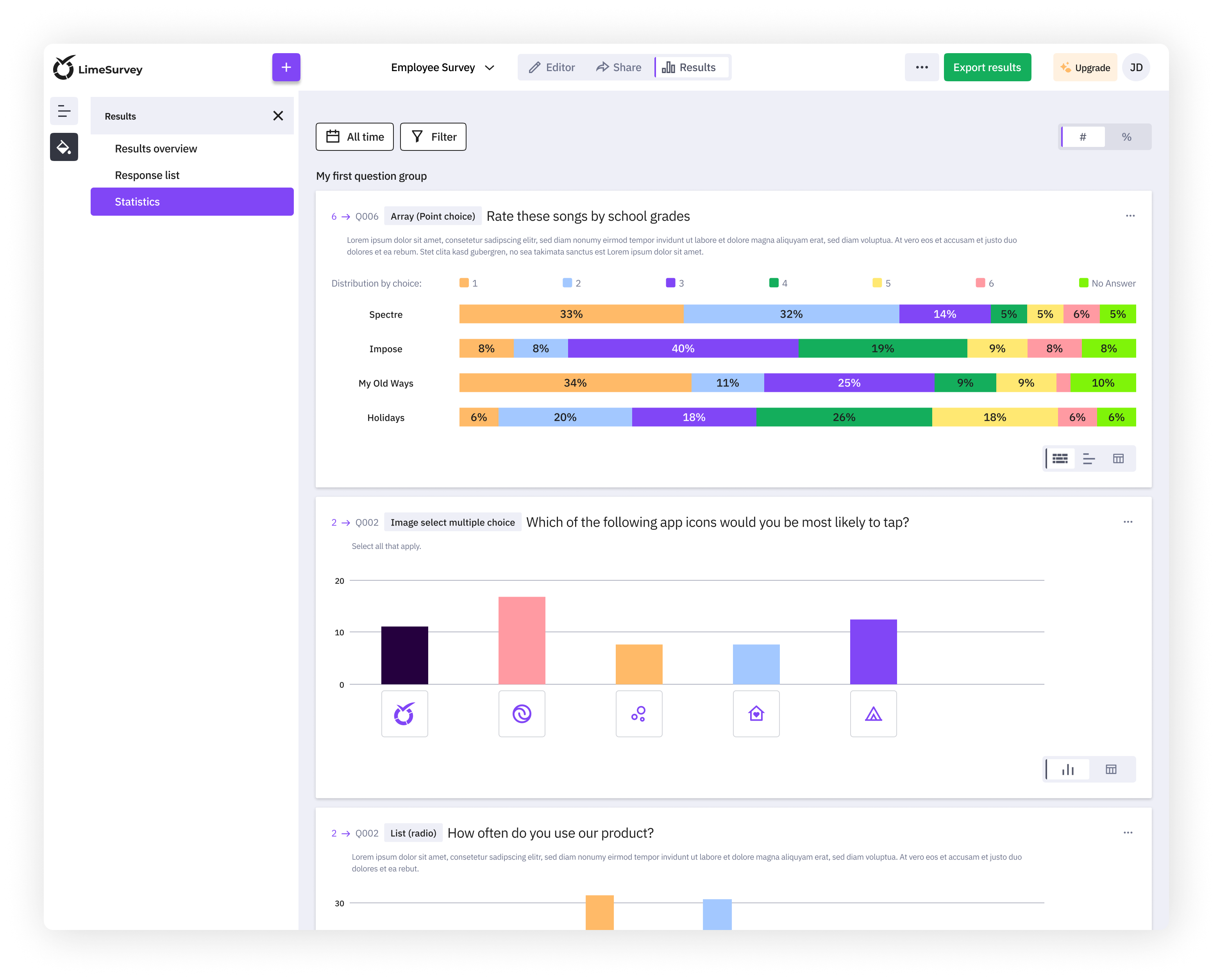
Each question includes a quick selection of the most feasible visualization or chart types. The available options adapt to the question type, giving you direct access to the views that make sense for the collected data.
A multiple-choice question, for example, can be displayed as a bar chart, pie chart, or data table from the quick selection.
If you need a different view, open the menu on any question to choose from the complete range of LimeSurvey chart types. The quick selection prioritizes the views best suited to the question type, while the full menu keeps every option available.
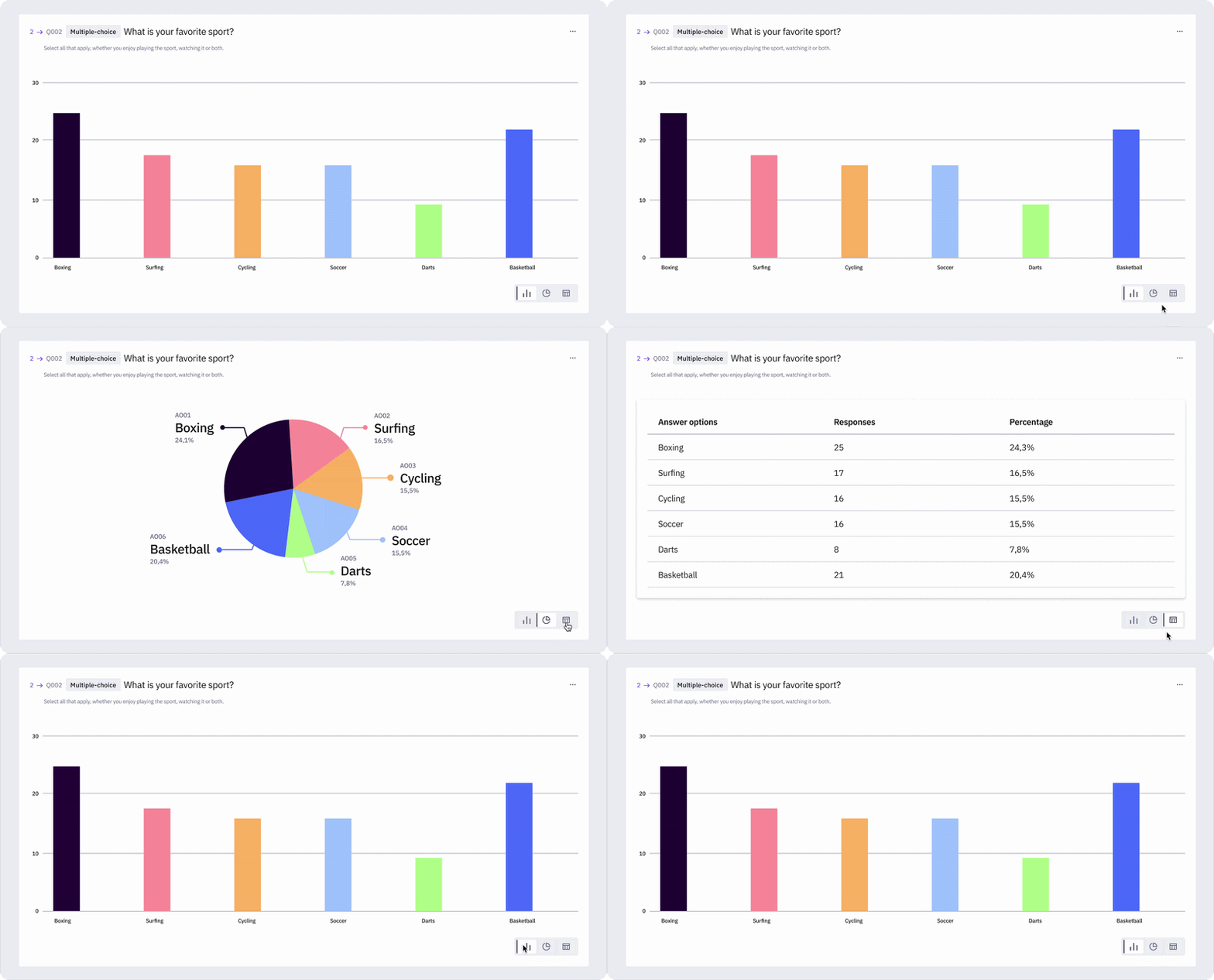
Switch between the available views without opening additional settings. Charts help you recognize patterns and differences, while tables provide access to the exact values. For visualizations that show response distributions, you can also switch between counts and percentages.
Accessibility
Since clearer should also mean more accessible.
Accessibility is not a single LimeSurvey 7 feature. It is a continuing program that began delivering improvements during LimeSurvey 6 and has continued through the LimeSurvey 7 release.
LimeSurvey is being reviewed against WCAG criteria across the administration interface, survey themes, and the new editor. We are still working at full speed on this.
That work has already led to fixes for keyboard navigation and focus, screen-reader labels and semantic structure, table captions, tabs, forms, notifications, and dialogs. The broader audit also covers colour contrast, zoom and reflow.
More improvements around the LimeSurvey 7 release
The improvements below arrived across late LimeSurvey 6, LimeSurvey 7.0, and later maintenance releases. Together, they form part of the broader LimeSurvey 7 story.
Global and personal time zones
Administrators can define a global time zone, while individual users can choose a personal setting that takes precedence. LimeSurvey stores timestamps in UTC and displays dates and times in the administration interface according to the applicable personal or global time zone. Exports remain in UTC.
Randomization of answer options
Keep selected answer options or subquestions in a fixed position while randomizing the rest. This gives researchers greater control over order bias and keeps choices such as “Other” or “None of the above” where participants expect to find them.
Selections across table pages
Bulk actions now appear in a floating menu as soon as you select an item. The menu remains visible while you scroll, shows the number of selected items and provides direct access to the actions available for that table.
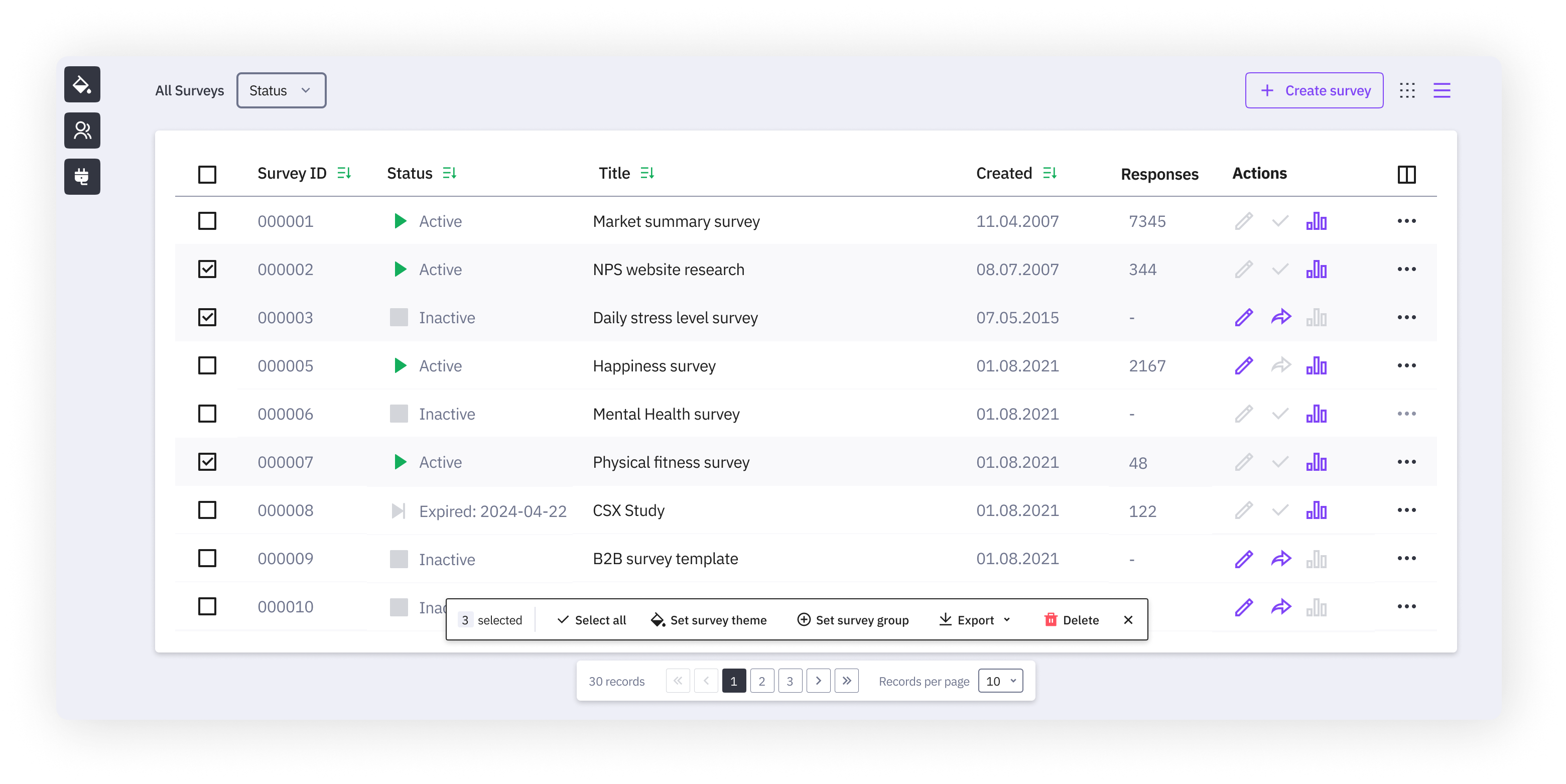
Selected items also remain selected when you move between table pages. This allows you to apply one bulk action to responses or other items selected across several pages.
Technical changes and upgrade guidance
A cleaner foundation for custom solutions
LimeSurvey 7 introduces a more consistent naming structure for response tables and fields. Most users will not notice this change during everyday survey creation or response collection, but it provides a more predictable foundation for custom solutions, plugins, and integrations.
If your installation uses custom plugins, themes, JavaScript, reporting queries or integrations that reference response tables or fields directly, we recommend reviewing and testing them before upgrading.
Learn more about the response table and field-name changes in our dedicated LimeSurvey 7 Beta 1 article.
Get started with LimeSurvey 7
A fresh chapter for LimeSurvey
With the new editor, the survey flow, and improved tools for working with responses, LimeSurvey 7 gives you a clearer path from the first question to the final analysis. It moves the platform forward while keeping the flexibility and detailed controls LimeSurvey users rely on.
Now it is time to create, share, and analyze your next survey with LimeSurvey 7.
Here’s to better surveys and fresh insights worth acting on.
Happy surveying! 💚🍋🟩
LimeSurvey