Translations:New Template System in LS3.x/77/en
From LimeSurvey Manual
<label for='simple_edit_options_surveyname2' class='control-label'>Survey name below progress bar</label>
<label class="btn btn-default"> <input name='surveyname2' type='radio' value='on' class='selector_option_radio_field ' data-id='simple_edit_options_surveyname2'/> Yes </label> <label class="btn btn-default"> <input name='surveyname2' type='radio' value='off' class='selector_option_radio_field ' data-id='simple_edit_options_surveyname2'/> No </label>
</syntaxhighlight>
- Open /upload/themes/survey/yourThemeName/config.xml and add two items to the "options" block so it looks like this:
    <options>
        <ajaxmode>on</ajaxmode>
        ...
        <surveyname1>on</surveyname1>
        <surveyname2>on</surveyname2>
    </options>
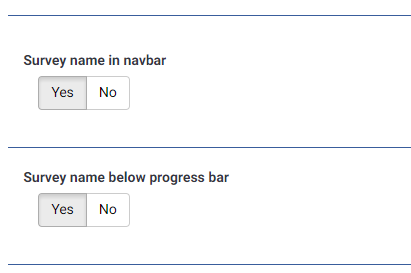
- This should give you two new options in the Theme Options screen like this: