Témaszerkesztő
From LimeSurvey Manual
Bevezetés
A LimeSurvey fejlett téma- és stílusrendszerrel rendelkezik, amely hatékony módot biztosít a fejlesztőknek a felmérés megjelenésének testreszabására. Az LS3 óta a 'sablonok kifejezést a 'témák kifejezés váltotta fel. A Témák lehetővé teszik a felmérés oldalainak stílusának szabályozását. A felmérés adminisztrátora kiválaszthat egy alapértelmezett témát, amelyet az egyes felmérésekhez használ, hogy tovább személyre szabhassa azt. A Témák olyan opciókat tartalmaz, amelyek kódolási ismeretek nélkül biztosítják az adminisztrátor számára, hogy egyszerűen logót helyezzenek el az üdvözlőoldalon, módosítsák a háttérszínt, válasszon betűtípust stb.
A LimeSurvey 3 témát tartalmaz. Ezeket a kezdeti témákat a LimeSurvey telepítési "themes/survey/" könyvtárában található könyvtárak határozzák meg. Minden témának saját könyvtára van. A téma főkönyvtárában található egy XML-beli konfigurációs fájl, valamint számos olyan könyvtár, amely tartalmazza a témák (.twig), lépcsőzetes stíluslapok (.css), nézeteket. 'scripts, images (.jpg vagy .png), és esetleg mások.
A LimeSurvey 2.50 óta a témamotor a Bootstrap 3-t használja CSS-keretként. Mivel a Bootstrap 3 egy szabványos keretrendszer, a fejlesztők rengeteg dokumentációt, oktatóanyagot és fórumszálat találhatnak róla az interneten.
A LimeSurvey 3 óta a témamotor a Twig-et használja, így a témafejlesztők biztonságosan és egyszerűen módosíthatják a felmérés megjelenítésének logikáját. A Twig lecseréli a korábbi verziókban használt helyettesítő kulcsszavak régi rendszerét. A kulcsszavak HTML-kódjának létrehozásához használt logika mostantól elérhető a téma nézeteiben.
Részlet a vanília témából:
 <div class="{{ aSurveyInfo.class.answercontainer }} col-xs-12" {{ aSurveyInfo.attr.answercontainer }}>
 {# MEGJEGYZÉS: Ha testre szeretné szabni a kérdés megjelenítését, használjon #}
 {{ kérdés.válasz | nyers }}
</div>
A témák, mivel HTML és Twig kód, általában meghatározzák a megjelenítendő szöveg elhelyezését és típusát, valamint az oldal hasonló szerkezeti jellemzőit. Gyakran hivatkoznak vagy tartalmaznak más fájlokat. Legtöbbjük egy közös lépcsőzetes stíluslapok (CSS) fájlra hivatkozik, amely meghatározza a betűtípus stílusát, színét, méretét, hátterét és hasonló paramétereket, amelyek a felmérés összes oldalán közösek. A stíluslapok a HTML 'class' paramétereire hivatkoznak, amelyek a HTML-kód különböző típusú objektumaihoz vannak társítva. Ez lehetővé teszi, hogy a stíluslap meghatározza, hogyan jelenítse meg a sokféle szöveg vagy egyéb objektum mindegyikét, amelyek több helyen is megjelenhetnek. A LimeSurvey-ben minden kérdéstípushoz egyedi osztályok állnak rendelkezésre, így részletes ellenőrzést biztosítva mindegyik kérdéstípushoz. A képfájlok, például logók vagy speciális folyamatjelző konstruktorok, szintén hivatkozhatnak a témafájlban. Végül a kapcsos zárójelekben lévő speciális kulcsszavakat a felmérésben az egyes nyelvi fordítási levelezőkhöz definiált szövegekre cseréljük (például a „Felmérés címe” vagy a „Kérdés szövege” minden definiált nyelvhez).
Ha új egyéni témát hoz létre, fontolja meg annak visszaküldését a LimeSurvey közösségnek, és tegye elérhetővé mások számára. Segítségével bővíthetjük témák, felmérések és egyéb kiegészítők tárházát, hogy még jobbá tegyük a LimeSurveyt! Tekintse meg LimeSurvey sablontárunkat, ahol megoszthatja sablonjait.
Új téma létrehozása
Új téma létrehozásához (vagy meglévő téma szerkesztéséhez) Sablonszerkesztési felhasználói engedély szükséges a LimeSurveyben, valamint engedélyre van szüksége a mögöttes operációs rendszerben lévő fájlok kezeléséhez. rendszer, amely otthont ad a LimeSurvey telepítésének.
Az új téma létrehozásának előnyben részesített módja a 'Témaszerkesztő (lásd alább), amely a felső eszköztár 'Konfiguráció alatt található. Egyes felhasználók szívesebben dolgoznak közvetlenül a témafájlokkal, így a webes felület helyett kedvenc szövegszerkesztőjüket használhatják. Ebben az esetben továbbra is használja a Témaszerkesztőt az új téma létrehozásához. Ezzel létrehoz egy új alaptémát az összes szükséges fájllal a LimeSurvey_web_root/upload/themes/survey/your_new_template könyvtárban. Innen a szövegszerkesztővel manuálisan módosíthatja a sablonfájlokat.
A LimeSurvey számos „nyilvános” eleme egy sor téma szerint módosítható. A következő rész nagyon rövid magyarázatot ad ezekről a sablonokról.
A LimeSurvey témaszerkesztő
'Témaszerkesztő: 'Konfiguráció > Témák> Témaszerkesztő A Témaszerkesztő csak a felhasználók számára érhető el Felhasználók kezelése#Set globális engedélyek a sablonok engedéllyel rendelkező felhasználóhoz és a kiemelt rendszergazdáknak.
 Figyelem : A nem megfelelően felépített téma működésképtelenné tehet egy felmérést (amely a megfelelő sablont használja).
A LimeSurvey témaszerkesztő lehetővé teszi a témák tartalmának online szerkesztését. A Témaszerkesztő elindítása: kattintson a 'Témák' gombra a 'Konfiguráció menüben, majd kattintson a 'Témaszerkesztő gombra a szerkeszteni vagy bővíteni kívánt téma mellett.


A sablonszerkesztő oldalon kiválaszthatja a szerkeszteni/megtekinteni kívánt sablont.

A következő lehetőségek állnak rendelkezésre:
- Létrehozás: Lehetővé teszi új sablon létrehozását. Annak érdekében, hogy ne kezdjük elölről, az 'alapértelmezett' sablont másolja.
- Importálás: Lehetővé teszi sablon importálását ZIP fájlból.
- Exportálás : Lehetővé teszi az aktuális sablon exportálását ZIP fájlba.
- Másolás: Lehetővé teszi új sablon készítését az aktuális másolásával.
- Átnevezés: Lehetővé teszi a sablon nevének megváltoztatását. Általában egy sablon másolása vagy importálása után használatos.
- Sablon: Egy legördülő lista, amely megjeleníti a LimeSurvey telepítésében található összes elérhető sablont.
- Képernyő: Egy legördülő lista, amely lehetővé teszi, hogy kiválassza, hogy a sablon melyik felmérési oldalát szeretné megtekinteni.
- Vissza az adminisztrációs panelre.
Sablon importálása/exportálása/másolása
Amikor exportál egy sablont, egy ZIP-fájl archívumot az összes sablonfájllal (.pstpl fájlok, képek, css fájlok stb.). Az exportált zip-fájlt importálhatja egy másik LimeSurvey-telepítésbe az importálási funkció használatával, vagy manuálisan átmásolhatja az archívumot egy másik LimeSurvey-telepítésbe, és kibonthatja a megfelelő sablonba. könyvtár ott.
A legjobb azonban a LimeSurvey sablon import/exportálás/másolás funkcióit használni a sablonszerkesztőben.
Oldalszerkezet / Sablonhasználat
- Az üdvözlő oldal: startpage.pstpl, welcome.pstpl, privacy.pstpl, navigator.pstpl, endpage.pstpl
- 'A kérdések oldalai: startpage.pstpl, survey.pstpl, startgroup.pstpl, groupdescription.pstpl, question.pstpl, endgroup.pstpl, endpage.pstpl
- Az utolsó oldal: kezdőlap .pstpl, assessment.pstpl, complete.pstpl, endpage.pstpl
Sablonfájlok
A következő sablonfájlokat használjuk a nyilvános felmérés elkészítéséhez, és minden új sablon mappában létezniük kell:
- startpage.pstpl: Minden html oldal elejét hozza létre. Kezdődik a "<head> " címke, és nem tartalmazhatja a "<html> " címkét. Egy szabványos html oldalnak ezt a "legelejét" a szkript írják. Kérjük, győződjön meg arról, hogy a startpage.pstpl fájljai tartalmaznak egy<body> címke. Bár sok böngésző nem követeli meg a W3 HTML-szabványok szigorú betartását, a LimeSurvey szkriptnek találnia kell egy címkét bizonyos JavaScript-elemek futtatásához. Nem gyakori, hogy sok „kulcsszó” szerepel a startpage.pstpl fájlban. Mindazonáltal érdemes lehet a(z) {SURVEYNAME} szót beletenni a címbe. A startpage.pstpl fájl tartalmazhat olyan kódot, amely a megfelelő endpage.pstpl fájlra végződik. Például elindíthat egy táblázatot ebben a fájlban, és bezárhatja a táblát az endpage.pstpl fájlban. A startpage.pstpl és endpage.pstpl fájlok a LimeSurvey által használt összes lehetséges oldalt körülölelik.
- survey.pstpl: Ez a sablon a második, amelyet a legtöbb oldalon használnak, és helyet biztosít a felmérés nevének megadására. és leírás. Ennek a sablonnak nincs megfelelő 'záró' sablonja, és ezt követően be kell zárnia az ebben a sablonfájlban megnyitott összes címkét (pl.: ne hagyjon itt nyitva egy táblát, mert nincs máshol bezárható).
- ' welcome.pstpl:' Ezt a sablont csak az üdvözlőképernyőn használjuk (amely a főoldalon is megtalálható az 'all in one' felméréseknél). Ezzel kinyomtathatja az üdvözlő szöveget és egyéb információkat, amelyeket a bevezetőben meg kell adni. A 'survey.pstpl' fájlhoz hasonlóan nincs megfelelő 'záró' sablon, ezért ebben a sablonfájlban megnyitott összes címkét is be kell zárni.
- startgroup.pstpl: Ez a sablon egy „összefoglaló” körben a csoporton belüli kérdésekhez. Rendelkezik egy megfelelő 'endgroup.pstpl' sablonnal, amellyel a fájlban lévő megnyitott címkék bezárhatók, így ezen belül is megnyithat egy táblázatot.
- groupdescription.pstpl: Ez a sablonfájl egy csoport leírásának megjelenítésére szolgál. Kérjük, vegye figyelembe, hogy a felmérés beállításaiban (a Prezentáció és navigáció beállításai menüpontot a Prezentáció fülre kattintva érheti el) beállíthatja, hogy a csoport leírása megjelenjen-e vagy sem. Ha nem, akkor ez a fájl egyáltalán nem szerepel benne.
- question.pstpl: Ez a fájl tartalmazza a kérdőív kérdés-, válasz- és súgószövegeit. A "csoportonkénti csoport" és a "mindent egyben" felmérésekben ezt a sablont minden kérdésnél ismételten körbeforgatják. Ehhez nincs megfelelő zárófájl, és minden címkét be kell zárni.
- question_start.pstpl: Ez a fájl a kérdés elején található egyes elemeket tartalmazza. A „question.pstpl” a {KÉRDÉS} kulcsszón keresztül szerepel. Célja, hogy a sablontervezők nagyobb irányítást biztosítsanak a kérdés elrendezése felett. Ez a sablon kívül esik a normál sablonrendszeren, és kiváltva lett (a LimeSurvey 1.87-től). A sablon összes kulcsszava közvetlenül elérhető a question.pstpl oldalon.
- completed.pstpl: Ez az oldal az utolsó oldalként jelenik meg, amikor a kérdőíves válaszokat elmentette és a felmérés véget ért. Használható egy "továbbító hivatkozás" megjelenítésére a felmérés beállításai szerint.
- endgroup.pstpl: Ez a fájl bezárja a csoportot, és felhasználható a programban megnyitott címkék bezárására. startgroup.pstpl fájl
- navigator.pstpl: Ez a fájl tartalmazza azokat a gombokat, amelyek a kérdőívben navigálnak: "következő", "előző", "utolsó", "elküld", "eddigi mentés" és a "minden törlése" hivatkozást. A kitöltött oldal kivételével minden oldalon használatos.
- printanswers.pstpl: Ez a fájl rendelkezik a felmérés nyomtatott verziójához szükséges HTML-burkolóval.
- print_group.pstpl : Ez a fájl megegyezik a startgroup.pstpl és endgroup.pstpl fájlokkal, de a felmérés nyomtatott verziójához.
- print_question.pstpl: Ez a fájl megegyezik a question.pstpl fájllal. , hanem a felmérés nyomtatott verziójához.
- print_survey.pstpl: Ez a fájl megegyezik a survey.pstpl fájllal, csak a felmérés nyomtatott verziójához.
CSS és Javascript
A sablonokban mindig használt két fájl a template.css (CSS-hez) és a template.js (Javascripthez).
- {TEMPLATECSS}: Sorok hozzáadása az alapértelmezett css-hez, template.css, és template-rtl.css az rtl nyelvhez.
- {TEMPLATEJS}: Adjon hozzá sorokat az alapértelmezett JavaScript-fájlokhoz, a template.js-hez és a LimeSurvey-hez szükséges összes js-fájlhoz.
A Bootstrap használata
LimeSurvey beágyazott Bootstrap 3-at, így az összes sablont stílusozhatja a jól dokumentált Bootstrap osztályokkal. További információért tekintse meg a Bootstrap dokumentáció.
A Awesome-Bootstrap-Checkbox beépülő modult is tartalmazza. Használhatja vele a tipikus Bootstrap színosztályokat (infó, figyelmeztetés, veszély, stb.) a "-checkbox" vagy "-radio" utótaggal is, bár a jelölőnégyzeteket és a rádiókat tetszés szerint alakíthatja.
Az alapértelmezett CSS vagy Javascript lecserélése
Egyes kérdések meghatározott fájlokat használnak a Javascripthez vagy a CSS-hez. Ha ki kell cserélnie egy funkciót, használjon lépcsőzetes rendszert. Javascript függvény esetén az utoljára beolvasott függvény a használt függvény.
Egyéb sablonfájlok
A privacy.pstpl, invitationemail.pstpl, reminderemail.pstpl és confirmationemail.pstpl fájlokat már nem használja a LimeSurvey, és az alapértelmezett ehelyett a megfelelő nyelvi fájlokban kell beállítani. Az e-mail üzenetek most felmérésenként szerkeszthetők.
Normál oldalak
Tíz szabványos oldal található, amelyeket a felmérésben résztvevők láthatnak a LimeSurvey alkalmazás felvétele vagy elérése során. Mindegyik a felmérés beállításaiban megadott 'Sablon számos közös 'Sablon fájlból épül fel. Az alábbi táblázat azt mutatja, hogy mely sablonfájlokat használták az egyes oldalak felépítéséhez.
| Felmérés oldalai/'' Sablonfájlok |
Felmérés Lista |
Üdvözöljük | Kérdés | Befejezve | Minden törlése | Regisztráció | Betöltés | Mentés | Nyomtatás Válaszok |
Nyomtatás Survey |
|---|---|---|---|---|---|---|---|---|---|---|
| SurveyList | Fájl:check.gif | |||||||||
| Üdvözöljük | Fájl:check.gif | |||||||||
| Adatvédelem | Fájl:check.gif | |||||||||
| Navigátor | Fájl:check.gif | Fájl:check.gif | ||||||||
| Felmérés | Fájl:check.gif | Fájl:check.gif | ||||||||
| StartGroup | Fájl:check.gif | |||||||||
| Csoportleírás | Fájl:check.gif | |||||||||
| Kérdés * | Fájl:check.gif | |||||||||
| EndGroup | Fájl:check.gif | |||||||||
| Értékelés | Fájl:check.gif | |||||||||
| Befejezve | Fájl:check.gif | |||||||||
| Minden törlése | Fájl:check.gif | |||||||||
| Regisztráció | Fájl:check.gif | |||||||||
| Betöltés | Fájl:check.gif | |||||||||
| Mentés | Fájl:check.gif | |||||||||
| Answers nyomtatása | Fájl:check.gif | |||||||||
| Felmérés nyomtatása | Fájl:check.gif | |||||||||
| Nyomtatási csoport | Fájl:check.gif | |||||||||
| Kérdés nyomtatása | Fájl:check.gif | |||||||||
| Kezdőoldal Végoldal Template.css |
Fájl:check.gif | Fájl:check.gif | Fájl:check.gif | Fájl:check.gif | Fájl:check.gif | Fájl:check.gif | Fájl:check.gif | Fájl:check.gif | Fájl:check.gif |
'* MEGJEGYZÉS: Az 1.90-es és újabb verziókban ez a question.pstpl ÉS a question_start.pstpl helyébe lép. Ha régi egyéni sablont használ, hozzá kell adnia a következő sort a question.pstpl elejéhez:
<div {QUESTION_ESSENTIALS} class="{QUESTION_CLASS}{QUESTION_MAN_CLASS}{QUESTION_INPUT_ERROR_CLASS}">
Ezután adja hozzá a megfelelő záró címkét a question.pstpl végéhez:
</div>
'* MEGJEGYZÉS: Az 1.91-es és korábbi verziókban a LimeSurvey js fájlok nem szerepelnek a sablonban. A 2-es verzióban használnia kell a(z) {TEMPLATEJS} elemet az egyik sablonfájlban, hogy hozzáadja a hivatkozást a js fájlhoz. Hozzáadhatja a startpage.pstpl vagy az endpage.pstpl fájlhoz. A személyes sablon frissítéséhez eltávolíthatja a {TEMPLATEURL}/template.js sort, és le kell cserélnie a {TEMPLATEJS} elemre.
A fájlvezérlő rész
A bal oldali "fájlvezérlő" ablakban rákattinthat az oldal összeállításához használt sablonfájlok egyikére. Megtekintheti a „Képernyő részt”, a JavaScript- és CSS-fájlokat. A fájl HTML-kódja ezután megjelenik a "Most szerkesztés" ablakban a közepén. Ha a sablon szerkeszthető (a címtárengedélyek határozzák meg), akkor bármilyen módosítást elvégezhet és elmenthet.

Az "Egyéb fájlok" ablakban megjelenik a sablonkönyvtár összes többi fájljának listája. Használhatja a jobb oldalt a képfájlok (képek, logók stb.) vagy a sablon létrehozásához szükséges egyéb fájlok feltöltésére és kiválasztására.
Ahelyett, hogy minden képhez linket használna, használja a {TEMPLATEURL} mezőt. Tehát ahelyett:
img src='/limesurvey/templates/yourtemplate/files/mypicture.jpg'
Használhatja az (New in 2.50 ):
img src='{TEMPLATEURL}files/mypicture.jpg'
A LimeSurvey 2.50 előtti verzióiban használja:
img src='{TEMPLATEURL}sajátkép.jpg'
A szerkesztett sablonoldal egy „mintája” látható lesz a képernyő alján. A sablonszerkesztőből nem lehet sablont törölni. Ezt úgy kell megtenni, hogy hozzáfér a mögöttes könyvtárhoz, és manuálisan törölje a fájlokat onnan. Lehetősége van különböző képernyőfelbontások kiválasztására is, hogy jobban értékelje a sablon érzését és megjelenését.
Sablonfájlok helye
A LimeSurvey a „standard” sablonokat a saját külön alkönyvtárában tárolja a „/templates” könyvtárban, amely a nyilvános könyvtárban van a többi LimeSurvey nyilvános fájllal együtt. A testreszabott felhasználói sablonok a /upload/templates könyvtárban tárolódnak.
A sablonok könyvtárában az ALWAYS egy "alapértelmezett" könyvtárnak kell lennie. Ezt a sablont alapértelmezés szerint a rendszer tartalékként használja, ha nem létezik sablonmappa, vagy nem található. Alapértelmezés szerint telepítve van.
A sablonkezelési területre feltöltött bármely képfájlt használhatja a következő szintaxis segítségével:
{TEMPLATEURL}fájlnév.xyz
Stíluskérdések CSS-sel
A kérdések stílusa a CSS-ben sokkal könnyebbé vált. Minden kérdéstípusnak van egy egyedi osztálya. A kötelező kérdésekhez tartozik egy további kötelező osztály. Például egy nem kötelező kérdéshez:
<div id="question5" class="gender">
...
</div>
és ha a kérdés kötelező:
<div id="question5" class="gender mandatory">
...
</div>
és ha a kérdés kötelező, de a felhasználó nem válaszolt rá, vagy ha van érvényesítés egy kérdésnél:
<div id="question5" class="gender mandatory input-error">
...
</div>
és ha a kérdés érvényesítése megtörtént, de a felhasználó nem válaszolt helyesen:
<div id="question6" class="text-short input-error">
...
</div>
Global classes for question part
These classes are used for each question type. Some question types use only one or two classes, while others may use much more.
| Class name | Part | Question type | Examples | Note | |
|---|---|---|---|---|---|
| .question (Obsolete since 3.0) | All question block | All question type | <p class="question">, <ul class="question">, <table class="question"> | ||
| .ls-answers (New in 3.0 ) | All question block | All question type | <div class="ls-answers ">, <ul class="ls-answers ">, <table class="ls-answers"> | ||
| .subquestions-list | List of subquestion | Multi choice question, array question type | <ul class="subquestions-list">, <table class="subquestions-list"> | .questions-list is used too | |
| .answers-list | List of answers | Single choice question, array question type, Multi input text question | <ul class="answers-list">, <table class="answers-list"> | ||
| .answer-item | The answer part: one answer | Single choice question, array question type, Multi input text question | <li class="answer-item">, <td class="answer-item"> | ||
| .noanswer-item | The answer part for no answer | Single choice question, array question type | <li class="noanswer-item">, <td class="noanswer-item"> | No answer is an answer too, then have double class noanswer-item and answer-item | |
| .question-item | The question part: one question | Multi text question, array question type | <li class="question-item">, <tr class="question-item"> | Some answers are questions too. Then we have a lot of class="question-item answer-item" | |
| .button-list | A list of button | Yes no and Gender question | <ul class="button-list"> | ||
| .button-item | The answer part with a button | Yes no and Gender question | <li class="button-item"> | ||
| .checkbox-list | A list of checkbox | Multi choice question, array number (checkbox) question type | <ul class="checkbox-list">, <tr class="checkbox-list"> | Some question types use multi-list class, like checkbox with comment: class="checkbox-list text-list" | |
| .checkbox-array (New in 3.0 ) | A array of checkbox | Array (numbers) with checkbox option | <table class="checkbox-list"> | ||
| .checkbox-item | The answer part with a checkbox | Multi choice question, array number (checkbox) question type | <li class="checkbox-item">, <td class="checkbox-item"> | ||
| .radio-list | A list of radio item | Single choice question, array question type (each row) | <ul class="radio-list">, <tr class="radio-list"> | ||
| .radio-array (New in 3.0 ) | A array of radio item | Array question type | <table class="radio-array"> | ||
| .radio-item | The answer part with a radio | Single choice question, array question type | <li class="radio-item">, | ||
| .text-list | A list of text input | Multi text question type, array of text | <ul class="text-list">, <tr class="text-list"> | ||
| .text-item | The answer part of a text input | Multi text question type, array of text | <li class="text-item">, | ||
| .numeric-list | A list of text input with numeric only answer | Multi numeric question type, array of number | <ul class="text-list numeric-list">, <tr class="text-list numeric-list"> | ||
| .number-list | A list of text input with numeric only answer (each row) | Multi numeric question type, array of number | <ul class="text-list numeric-list">, <tr class="text-list numeric-list"> | ||
| .number-array (New in 3.0 ) | The answer part of a numeric input | Array of number | <table class="number-array"> | ||
| .select-list (Obsolete since 2.50) | A list of select | Array numbers, Dual scale array (select) | <table class="select-list"> | ||
| .dropdown-list (New in 2.50 ) | A list of select | Array numbers, Dual scale array (select) (each row) | <table class="dropdown-list"> | ||
| .dropdown-array (New in 3.0 ) | A array of dropdown | Array numbers, Dual scale array (select) | <table class="dropdown-array"> | ||
| .select-item (Obsolete since 2.50) | The answer part of a select | Array numbers, Dual scale array (select), single choice with select | <p class="select-item">, <td class="select-item"> | ||
| .dropdown-item (New in 2.50 ) | The answer part of a select | Array numbers, Dual scale array (select), single choice with select | <p class="dropdown-item">, <td class="dropdown-item"> | ||
| .hide (Obsolete since 3.0) | Used for accessibility: hidden with css but read by screenreader, since 2.50 : you can use sr-only from bootstrap | Short text question | <label class="hide"> | Can be used for other purposes | |
| .ls-js-hidden (New in 3.0 ) | Used for part to be hidden if javascript is activated | Button for example | <div class="ls-js-hidden"> | LimeSurvey core used it, but you can use it too in your template | |
| .ls-js-hidden-sr (New in 3.0 ) | Used for accessibility: hide it if js is activated, but always show if user use a screenreader | Button for example | <a class="ls-js-hidden-sr"> | Button | |
| .ls-no-js-hidden (New in 3.0 ) | Used for part to be hidden if javascript is not activated | Link | <a class="ls-no-js-hidden"> | LimeSurvey core used it for inactive link if javascript is not activated | |
| .ls-label-xs-visibility (New in 3.0 ) | Label to be hidden in big screen, but show with little screen (with no more table) and to screenreader | label | <label class="ls-no-js-hidden"> | Used for label inside table cell of array question type | |
| .ls-input-group-extra (New in 3.0 ) | Same usage of boostrap input-group-addon, but without the border and the background. | right suffix | <div class="ls-input-group-extra"> | Used for right and left suffix (global) | |
| .checkbox (Obsolete since 3.0) | input[type=checkbox] | Question with checkbox | <input type="checkbox" class="checkbox"> | With modern browser: not needed, but some old browser need this | |
| .radio (Obsolete since 3.0) | input[type=radio] | Question with radio | <input type="radio" class="radio"> | With modern browser: not needed, but some old browser need this | |
| .text | input[type=text] | Question with input text, or textarea | <textarea class="text"> | ||
| .answertext | Array question type | Answer part of array question type | <th class="answertext"> | ||
| .col-answers | Array question type | Column of answers | <col class="col-answers"> | ||
| .odd .even (Obsolete since 2.50) | Array question type | Alternation for column | <col class="odd"> | ||
| .array1 .array2 (Obsolete since 3.0) | Array question type | Alternation for line | <tr class="array1"> | ||
| .ls-odd .ls-even (New in 3.0 ) | Array question type | Alternation for subquestion and Y axis | <tr class="ls-odd"> |
Some examples of question part with classes
Text-short question type:
<p class="question answer-item text-item ">
<label class="hide label" for="answerSGQA">Answer</label><input type="text" value="" id="answerSGQA" name="SGQA" size="50" class="text  empty">
</p>
Multiple short text
<ul class="subquestions-list questions-list text-list">
  <li class="question-item answer-item text-item" id="javatbdSGQA">
    <label for="answerSGQA">Some example subquestion</label>
     <span><input type="text" value="" id="answerSGQA" name="SGQA" size="20" class="text empty"></span>
  </li>
</ul>
Array question type
<table class="question subquestion-list questions-list ">
<caption class="hide read">Some explanation for accessibility.</caption>
<colgroup class="col-responses">
<col width="50%" class="col-answers">
<col width="25%" class="odd">
<col width="13.3%" class="col-no-answer even">
</colgroup>
<thead>
<tr class="array1 dontread">
<td> </td>
<th>1</th>
<th>No answer</th>
</tr>
</thead>
<tbody>
<tr class="array2 answers-list radio-list" id="javatbdSGQ">
<th width="20%" class="answertext">Some example subquestion
</th>
<td class="answer_cell_001 answer-item radio-item">
<label for="answerSGQA" class="hide read">1</label>
<input type="radio" value="1" id="answerSGQA" name="SGQA" class="radio">
</td>
<td class="answer-item radio-item noanswer-item">
<label for="answerSGQA" class="hide read">No answer</label>
<input type="radio" value="" id="answerSGQA" name="SGQA" class="radio">
</td>
</tr>
</tbody>
</table>
The full list of question classes
| Question Type | Question Class | Question ID |
| 5 point choice | .choice-5-pt-radio | 5 |
| Array (10 point choice) | .array-10-pt | B |
| Array (5 point choice) | .array-5-pt | A |
| Array (Flexible Labels) dual scale | .array-flexible-duel-scale | 1 |
| Array (Increase, Same, Decrease) | .array-increase-same-decrease | E |
| Array (Multi Flexible) (Numbers) | .array-multi-flexi | : |
| Array (Multi Flexible) (Text) | .array-multi-flexi-text | ; |
| Array (Yes/No/Uncertain) | .array-yes-uncertain-no | C |
| Array (flexible labels) | .array-flexible-row | F |
| Array (flexible labels) by column | .array-flexible-column | H |
| Boilerplate question | .boilerplate | X |
| Date | .date | D |
| Equation | .equation | * |
| Gender | .gender | G |
| Huge free text | .text-huge | U |
| Language switch | .language | I |
| List (dropdown) | .list-dropdown | ! |
| List (radio) | .list-radio | L |
| List with comment | .list-with-comment | O |
| Long free text | .text-long | T |
| Multiple numerical input | .numeric-multi | K |
| Multiple options | .multiple-opt | M |
| Multiple options with comments | .multiple-opt-comments | P |
| Multiple short text | .multiple-short-txt | Q |
| Numerical input | .numeric | N |
| Ranking | .ranking | R |
| Short free text | .text-short | S |
| Yes/No | .yes-no | Y |
The full list of validation classes
These apply to the help and/or validation tip messages so that each type can be individually styled.
The .hide-tip option and .input-error options interact by default so that you can have validation tips hidden. However, they do appear when there are validation errors and disappear again when those errors are rectified.
All of these are designed to eliminate the need for pop-up alert messages. Instead, tips can appear/disappear as needed and are color-coded to indicate whether the answers pass the validation criteria.
Furthermore, when you first visit a page that has unmet validation criteria, you can color-code the tips in a pleasing color to show which validation criteria have not been met yet; then re-display the page using a harsher color if the person submits the page with lingering validation errors.
| Purpose | CSS Class | Description |
| Mandatory | .mandatory | the question is mandatory |
| User input error | .input-error | the question had at least one validation error |
| Hide Tip | .hide-tip | added if you use the hide_tip option |
| defrault type | .em_default | for default tip set ( numeric value etc …) |
| Num answers | .em_num_answers | for for min_answers and max_answers |
| Value range | .em_value_range | for min/max_num_value_n and multiflexible_min/max |
| Sum range | .em_sum_range | for min/max/equals_num_value |
| Regex validation | .em_regex_validation | for regular-expression validation of the question |
| Question-level validation function | .em_q_fn_validation | for the em_validation_q option |
| Subquestion-level validation function | .em_sq_fn_validation | for the em_validation_sq option |
| Other comment mandatory | .em_other_comment_mandatory | for other_comment_mandatory option - shows when "other" is selected but associated comment is missing. |
Importing styles into your custom template
The custom question styles are near the bottom of each template's CSS file and start with:
/* --------------------------- START: Question styles ------------------------------ */
If you're styling your own custom template, you should be able to copy everything after the above one from templates/default/template.css (for table-based layouts) or /templates/limespired/template.css (for CSS-based layouts) into your own style sheet without any impact on your other styles.
Internet Explorer Conditional Style Sheets
Because of the marked discrepancies in rendering between IE6 & IE7 and the other browsers, there are special IE conditional style sheets included for each template.
<!--[if IE]>
  <link rel="stylesheet" type="text/css" href="{TEMPLATEURL}IE_fix_all-versions.css" />
<![endif]-->
<!--[if lt IE 7]>
  <link rel="stylesheet" type="text/css" href="{TEMPLATEURL}IE_fix_older-than-7.css" />
<![endif]-->
<!--[if IE 8]>
		<link rel="stylesheet" type="text/css" href="{TEMPLATEURL}ie_fix_8.css" />
<![endif]-->
You should include the above code within your startpage.pstpl and copies of both the IE style sheets from either /templates/default/ or /templates/limespired for Tables base layout and CSS based layout respectively.
Alternative solution for internet explorer
You can put a conditional class for body in startpage.pstpl and use this class in your template.css. This method is used in the citronade template (Obsolete since 2.06). Adding a js / no-js class to have javascript / no javascript system.
<!--[if lt IE 7 ]> <body class="lang-{SURVEYLANGUAGE} {SURVEYFORMAT} ie ie6 ielt7 ielt8 ielt9 no-js"> <![endif]-->
<!--[if IE 7 ]> <body class="lang-{SURVEYLANGUAGE} {SURVEYFORMAT} ie ie7 ielt8 ielt9 no-js"> <![endif]-->
<!--[if IE 8 ]> <body class="lang-{SURVEYLANGUAGE} {SURVEYFORMAT} ie ie8 ielt9  no-js"> <![endif]-->
<!--[if IE 9 ]> <body class="lang-{SURVEYLANGUAGE} {SURVEYFORMAT} ie ie9 no-js"> <![endif]-->
<!--[if gt IE 9]><!--><body id="body" class="lang-{SURVEYLANGUAGE} {SURVEYFORMAT} no-js"><!--<![endif]-->
<script type='text/javascript'>/*<![CDATA[*/(function(H){ H.className=H.className.replace(/\bno-js\b/,'js') })(document.getElementsByTagName('body')[0]);/*]]>*/</script>
And in template.css use:
.ie6{/*specific for internet explorer 6*/}
.ielt8{/*specific for internet explorer 6 and 7*/}
.ie{/*specific for all internet explorer */}
Right-to-Left (RTL) languages and justify
The text editor within LimeSurvey is able to format RTL text. However, the editor itself shows the RTL language in a left to right format when justified. This is just an editor display issue. The RTL and justified question or text will display correctly from right to left, even when justified, in your survey or on preview.
Keywords
Deprecated : This features is deprecated in version 3.0.
Keywords within a template file get replaced by the current survey information. They are surrounded by curly brackets, for example: {SURVEYNAME}.
The following strings will be replaced by LimeSurvey when parsing the template file and presenting it to survey users. These field strings will work on almost every template except for the 'Completed Page'. (Most of these strings can be found in the common.php file. If it's not there, look in the index.php file.)
| Keyword | Template files | Description |
|---|---|---|
| {SURVEYNAME} | All Files | The survey title |
| {SURVEYDESCRIPTION} | All Files | The survey description |
| {WELCOME} | All files (mainly for welcome.pstpl) | The survey 'welcome' text |
| {PERCENTCOMPLETE} | survey.pstpl | A small graph showing the percentage of the survey completed |
| {GROUPNAME} | startgroup.pstpl, groupdescription.pstpl, endgroup.pstpl | Displays the current group name |
| {GROUPDESCRIPTION} | startgroup.pstpl, groupdescription.pstpl, endgroup.pstpl | Displays the current group description |
| {NUMBEROFQUESTIONS} | welcome.pstpl | Displays the total number of questions in the survey (just the number) |
| {THEREAREXQUESTIONS} | welcome.pstpl | Displays the sentence "There are X questions in this survey" - from the relevant language file. The X is replaced with the number of questions. Note that this will also work appropriately for singular or plural. If there is only 1 question, it will print "There is 1 question in this survey". |
| {CHECKJAVASCRIPT} | All files (mainly for welcome.pstpl) | Warning message when end-user browser have javascript disabled |
| {QUESTION} | Question.pstpl | (Has been superseeded as of LS1.87) Displays the current question text (The format of {QUESTION} can customised by editing 'question_start.pstpl') Use the following: {QUESTION_TEXT}, {QUESTION_MANDATORY}, {QUESTION_HELP}, {QUESTION_MAN_MESSAGE}, {QUESTION_VALID_MESSAGE}, {QUESTION_INPUT_ERROR_CLASS}, and appropriate wrapping HTML instead of {QUESTION} |
| {ANSWER} | question.pstpl, print_question.pstpl | presents the answer form for the current question |
| {SGQ} | question.pstpl, question text | Can be used in the question text itself to reference the input field of the question dynamically by displaying the Survey-Group-Question id for the current question. (as of svn build 9755) |
| {QUESTIONHELP} | question.pstpl, print_question.pstpl | Displays help text (predefined tip for question type) for the current question |
| {QUESTION_CLASS} | question.pstpl, print_question.pstpl | unique class for each question type. (To be included in the question's wrapping tag.) |
| {QUESTION_CODE} | question.pstpl, print_question.pstpl | Displays the current question code |
| {QUESTION_ESSENTIALS} | question.pstpl | the question ID and (if a question is conditional), 'style="display:none;"'. (To be included in the question's wrapping tag.) |
| {QUESTION_HELP} | question.pstp, question_start.pstpl | Displays the user defined help text for the current question |
| {QUESTION_TYPE_HELP} | print_question.pstp | Displays the user defined help text for the current question |
| {QUESTION_INPUT_ERROR_CLASS} | question.pstp, question_start.pstpl | Provides a class if there was user input error |
| {QUESTION_ID} | print_question.pstp | Provides a unique ID for each question to allow styling for specific questions |
| {QUESTION_TEXT} | question.pstp, print_question.pstp, question_start.pstpl | Displays the text for the current question |
| {QUESTION_MANDATORY} | question.pstp, print_question.pstp, question_start.pstpl | Displays the translated 'Mandatory' text for the current question |
| {QUESTION_MAN_CLASS} | question.pstpl, print_question.pstpl | class if a question is mandatory. (To be included in the question's wrapping tag.) |
| {QUESTION_MAN_MESSAGE} | question.pstp, print_question.pstp, question_start.pstpl | Displays the translated 'Mandatory' help message text for the current question |
| {QUESTION_NUMBER} | print_question.pstpl | Incremental count of questions. |
| {QUESTION_VALID_MESSAGE} | question.pstp, print_question.pstp, question_start.pstpl | Displays the translated valid help message text for the current question |
| {QUESTION_SCENARIO} | print_question.pstp | Prints out the 'scenario' text for conditional questions. |
| {NAVIGATOR} | navigator.pstpl | Displays navigation buttons (next, prev, last) |
| {CLEARALL} | All files (but intended for navigator.pstpl) | Displays the "Exit and Clear Results" link |
| {COMPLETED} | completed.pstpl | Displays the 'completed' message for registering, will change depending on whether the attribute_1 and attribute_2 fields are set. |
| {URL} | completed.pstpl | Displays the survey 'url' and 'url text' |
| {PRIVACYMESSAGE} | privacy.pstpl | The privacy message is shown if you set your survey to be anonymous. The text can be edited/translated in the language files. This can also be changed manually by editing the privacy.pstpl template you wish to use. |
| {TEMPLATEURL} | All Files | The URL to the current template location (useful for referencing image files in your template) |
| {SURVEYRESOURCESURL} | All Files | The URL to the current uploaded files for this survey location (useful for referencing image files in your question, group, ....) |
| {SUBMITCOMPLETE} | endpage.pstpl | The statement (from the language files) that tells the user they have completed the survey, and to press the "Submit" button |
| {SUBMITREVIEW} | survey.pstpl | The statement (from the language files) that tells the user they can review/change the answers they have made by clicking "<< prev" |
| {SAVEDID} | All Files | Displays 'Response ID' of user |
| {QUEXMLPDF} | All Files | Displays button to export the queXML PDF of questionnaire including answers entered up until the point that has been completed in the survey. |
| {TOKEN:FIRSTNAME} | All Files | ***If survey answers are NOT ANONYMOUS - gets replaced with the users first name from the tokens table |
| {TOKEN:LASTNAME} | All Files | ***If survey answers are NOT ANONYMOUS - gets replaced with the users last name from the tokens table*** |
| {TOKEN:EMAIL} | All Files | ***If survey answers are NOT ANONYMOUS - gets replaced with the users email from the tokens table*** |
| {TOKEN:ATTRIBUTE_1} | All Files | ***If survey answers are NOT ANONYMOUS - gets replaced with the users attribute_1 from the tokens table*** |
| {TOKEN:ATTRIBUTE_2} | All Files | ***If survey answers are NOT ANONYMOUS - gets replaced with the users attribute_2 from the tokens table*** |
| {ANSWERSCLEARED} | Preferably in navigator.pstpl | The "Answers Cleared" statement from the language files |
| {RESTART} | clearall.pstpl | URL to restart the survey |
| {REGISTERERROR} | register.pstpl | Shows any error messages in the register page (ie: "You must include an email address") |
| {REGISTERMESSAGE1} | register.pstpl | The statement "You must be registered to complete this survey" from the language files |
| {REGISTERMESSAGE2} | register.pstpl | Details about registering from the language files |
| {REGISTERFORM} | register.pstpl | The actual form for registering, will change depending on whether the attribute_1 and attribute_2 fields are set. |
| {SAVE} | Works suitable on navigator.pstpl | Displays the 'Save your responses so far' button to offer the user to save and come back later to continue the survey. If the Save option is deactivated in the survey properties the tag will not be shown and ignored. |
| {LANGUAGECHANGER} | survey.pstpl | Displays a switch in multilingual surveys to change the question. |
Input/Buttons
Each "input" type in a survey has been given its own class name, so that you can add CSS to your "startpage.pstpl" file and have some control over the appearance of form buttons and inputs. These class names are as follows:
- submit (Submit Buttons)
- text (Text Inputs - for short free text, date, and numerical type)
- answertext (Text of answers)
- radio (Radio Buttons)
- checkbox (Check Boxes)
- select (Select / List Boxes)
- textarea (Large text inputs - for long free text)
- clearall (The "Exit and Clear Survey" link)
- rank (The rank style question. Doesn't set the colour of the select box or the text boxes, but it does allow the changing of background colour, text colour, size etc., for the rest of the ranking question)
- graph (The "percentage completed" graph table)
- innergraph (The table inside the graph table - this contains the 0% and 100% text. Use this for changing the size of this text)
- question (General settings for any question that is displayed within a table. Generally, you should use this to make sure that their font size and color is the same as you have used elsewhere as a default)
- mandatory (Mandatory questions)
- input-error (User input error - for if a user has made a mistake with a mandatory question or question with validation)
- array1 and array2 (These two styles are cycled when presenting the range of answers for an array type question. This allows you to set an alternating background color for these question types. Array1 is also used for the column headings in these question types)
- errormandatory (Sets the color and style of the "This question is mandatory" error message)
- warningjs (Sets the color and style of the warning message displayed if the participant's browser has javascript disabled)
There are also some elements that can be accessed using the ID of the element (#ID in CSS):
- surveycontact (The contact message shown on the start page)
- tokenmessage (used for messages inside the survey, e.g. the session expired error message)
Because you can edit all the HTML aspects, there's no reason to surround your templates with a
<div class='new_name'></div>
and then define a css for that new_name class.
Styling the progress bar
The progress bar appearance can be modified with CSS.
To change the background color of the bar, add something like the following to the end of your custom.css file (example for fruity theme):
.fruity .progress-bar {
 background-color: #3300FF;
}
To change the border color of the bar, add something like the following to the end of your custom.css file (example for fruity theme):
.fruity .progress-bar {
 border: 1px solid #FF0000;
}
Advanced features available to developers
LimeSurvey has integrated some user-made patches that permits some special changes. These very advanced features (generally) require changes to the underlying code base of LimeSurvey and should be done carefully in order not to introduce security holes.
Support for your own Javascript functions
Some users may need to run Javascript on the survey pages, but calling checkconditions() in the BODY element made it impossible to do so. This call has been replaced with a small JavaScript function in the HEAD that sniffs for the existence of checkconditions() and template_onload() before calling them. In this way, a template author can create his or her own template_onload() function in the HEAD that replaces the default one.
- Disable XSS filter - in Global settings -> Security, set "Filter HTML for XSS" to No.
- Enter your script in the source of a question or group description.
 For further details, see the workaround section.
Tips & tricks
Language specific element
If you want to have a language specific sentence in a survey, for example help at the end of each page, you can add a .pstl file a sentence and hide it for the other language. If we hide it in the template.css, we can use the pseudo selector :lang, but we use some class for better compatibility.
Below, there are two help sentences, in French and English. Put this on endpage.pstpl:
<div class="fr" lang="fr">Pour de l'aide en direct appelez le 000000</div>
<div class="en" lang="en">For some help, please call 000000</div>
and in template.css:
.lang-fr .en{display:none}
.lang-en .fr{display:none}
Change the layout of the survey page
After editing and saving a template, it applies to a survey list page only if it is selected from the settings of the survey. To make it the default template, go under the General tab located in the Global settings of your LimeSurvey installation and choose the desired template. From this point on, all the templates that use the "default" option as template, plus the ones that are going to be newly created, will use the newly selected default template.
To use your current template for this page, you must change the appropriate setting from Global settings. In older versions, this change can be done by editing the $defaulttemplate setting from the config file: copy this setting from config-defaults.php to config.php which overrides config-defaults.php and edit this setting to $defaulttemplate = 'yourtemplatename';.
Import/Export of templates: Mac users
Mac users, please note that the Mac OSX default archive utility may have problems with zip folders "generated on the fly".
A workaround is to unix'es unzip from the command line:
$ unzip template.zip -d template
Archive: template.zip
inflating: template/startpage
inflating: ...
Another workaround is to use scripts in their mac-compiled counterparts.
Use the same template with different logos
If you want to use the same template for all surveys and just want to change the logo for each survey, you can use the {SID} placeholder in the template .pstpl file and thereby refer to different images:
<img src="{TEMPLATEURL}files/logoImage-{SID}.png">
Display custom favicon
A favicon is the little icon you see in the browser's address bar, list of bookmarks or tab. You can display your own icon as follows:
- Create a favicon - You can use Google to find lots of free favicon generators.
- Name your new favicon "favicon.ico" and place it in your template /files directory.
- Add the following code to your startpage.pstpl before the </head> tag.
<link rel="shortcut icon" href="{TEMPLATEURL}files/favicon.ico" type="image/x-icon">
<link rel="icon" href="{TEMPLATEURL}files/favicon.ico" type="image/x-icon">
Different appearance for survey-/question-pages
If you want LimeSurvey to change the appearance of every second page (i.e., even and odd survey pages), you can use .page-odd class in your CSS file to change the appearance of odd pages.
An example from default template of LimeSurvey 1.91+:
.page-odd table.question-group {
 background-color: #D2F2D3;
}
If you do not want differentiate even and odd pages, find all instances of .page-odd in template.css and remove those styles.
Create a vertical separator border for dual scale array
To create a vertical separator border for a dual scale array, you can add the following lines to your template.css-file.
table.question thead td.header_separator,
table.question tbody td.dual_scale_separator
{
   border-right:solid 1px #00A8E1;
}
header_separator is used to adress the separator for the header "td". The "dual_scale_separator" is used to address the separator column in the dual scale array.
Adding your own logo to the survey list
- First please open the theme editor for the theme you like to use.
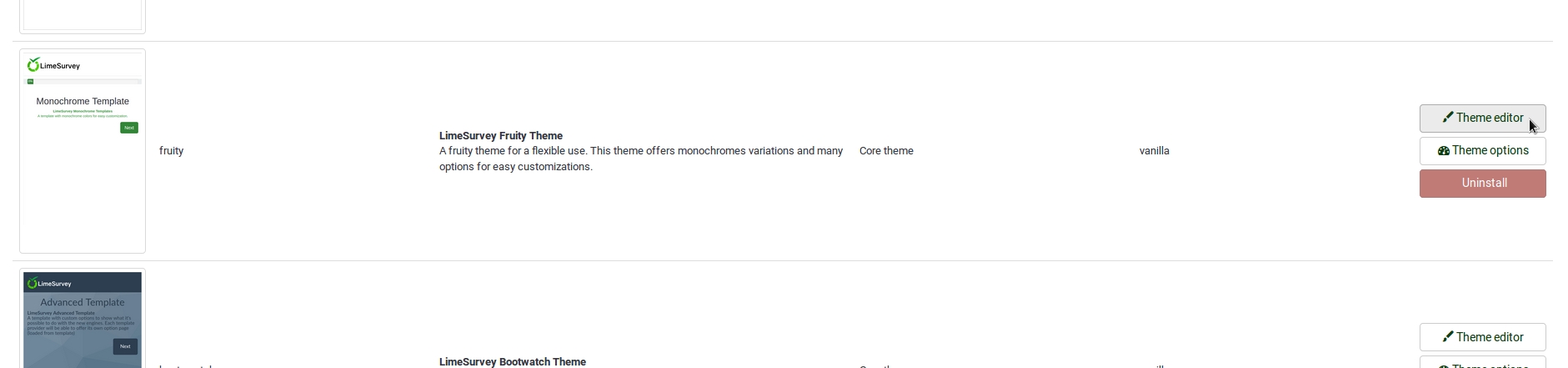
- We recommend to use fruity, it is our best theme currently.
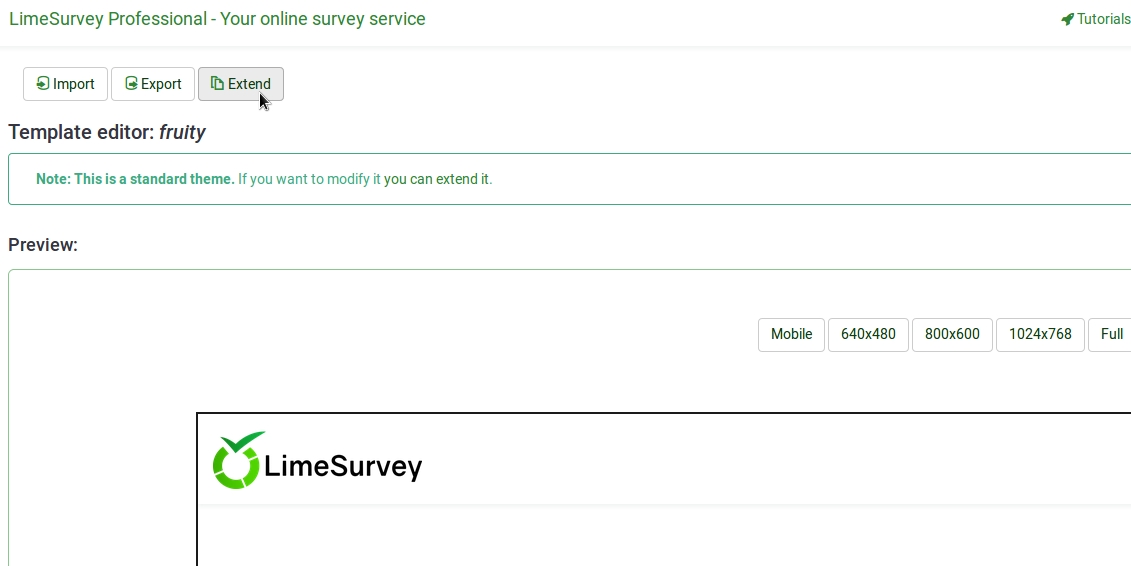
- Then extend the theme and give it a name you will recognize.
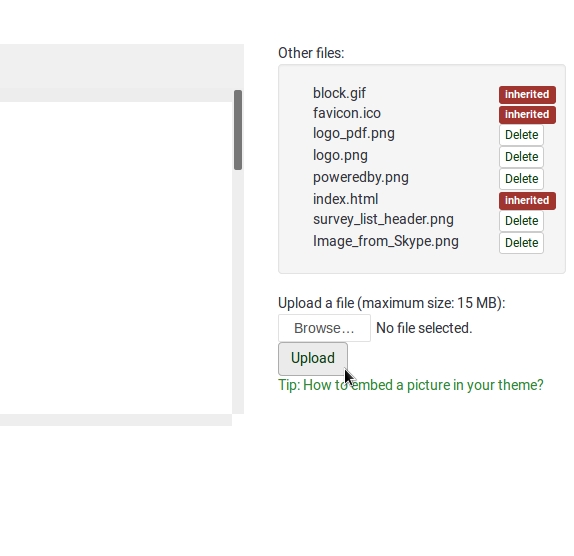
- In the following view you may upload the logo you want to use.
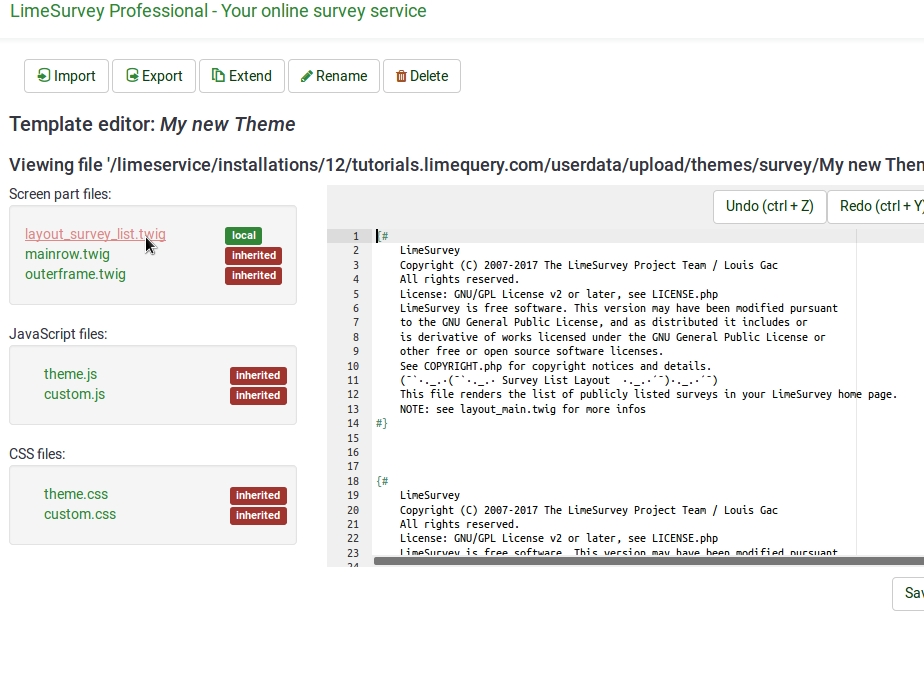
- Select the editor screen `Survey List´ in the Screen dropdown in the top right corner.
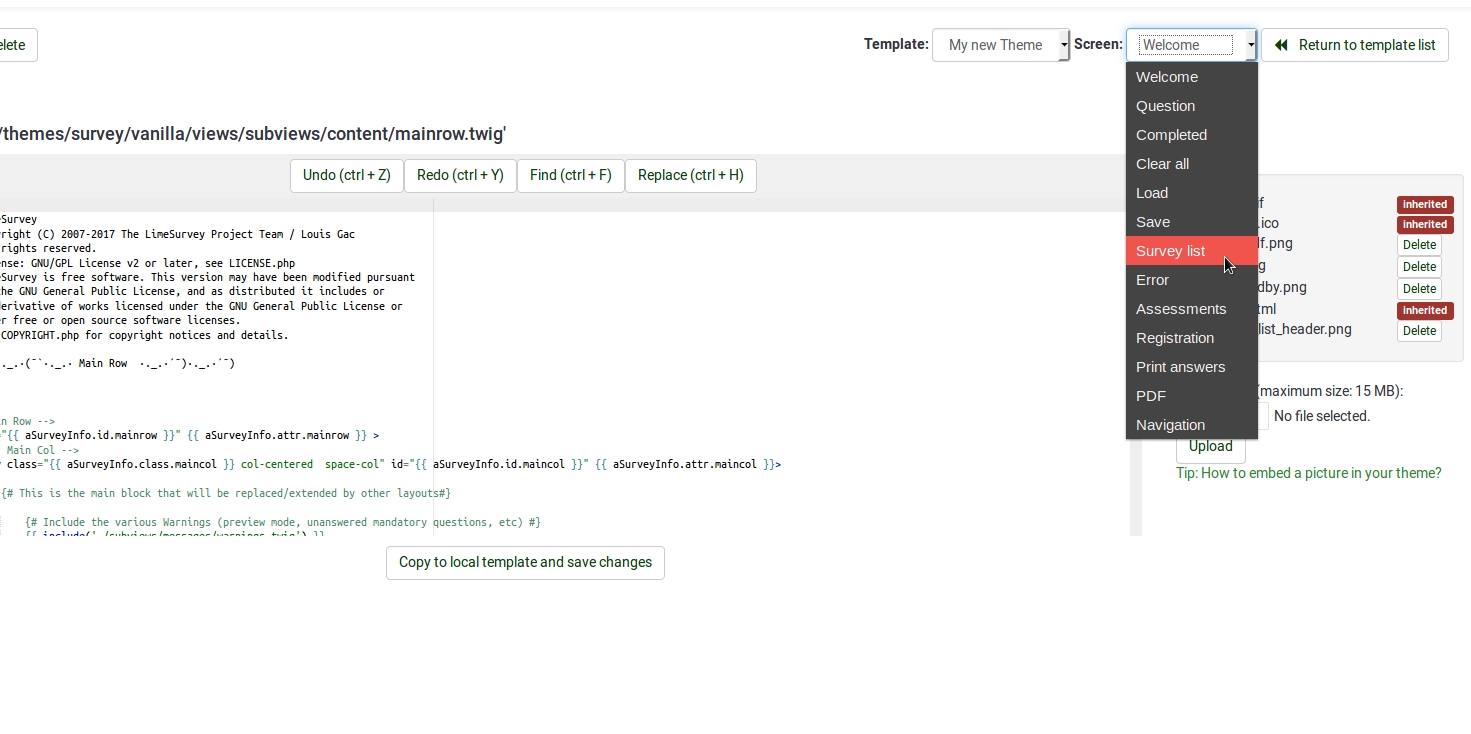
- Then select `layout_survey_list.twig´ in the left side menu.
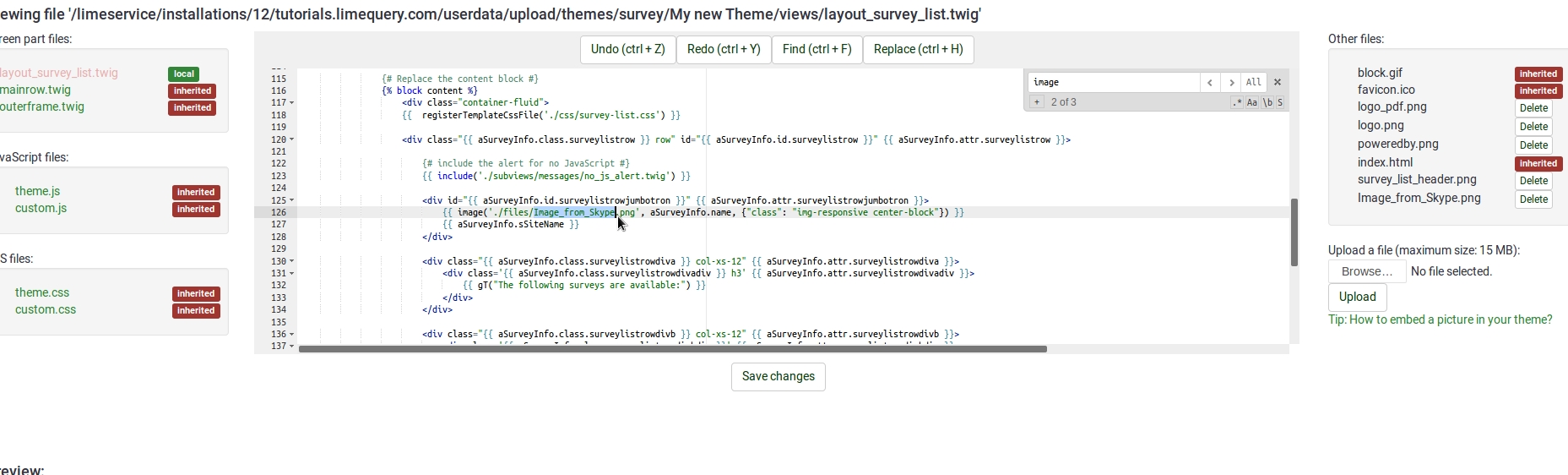
- In the editor scroll to line 126 and change the marked part to the filename of the image you uploaded to the theme before.
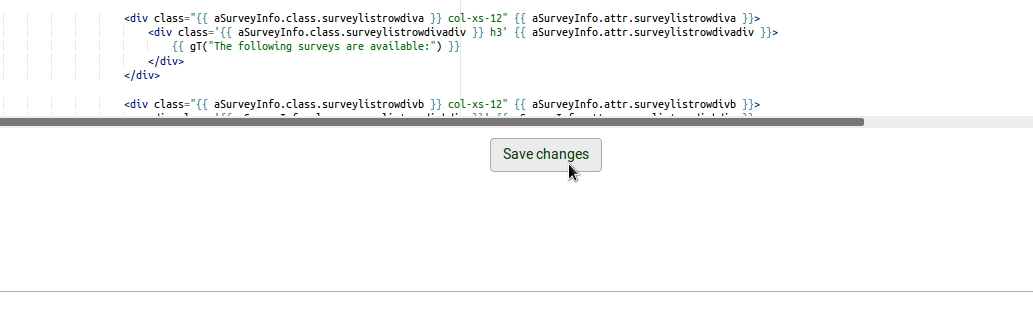
- Save your file.
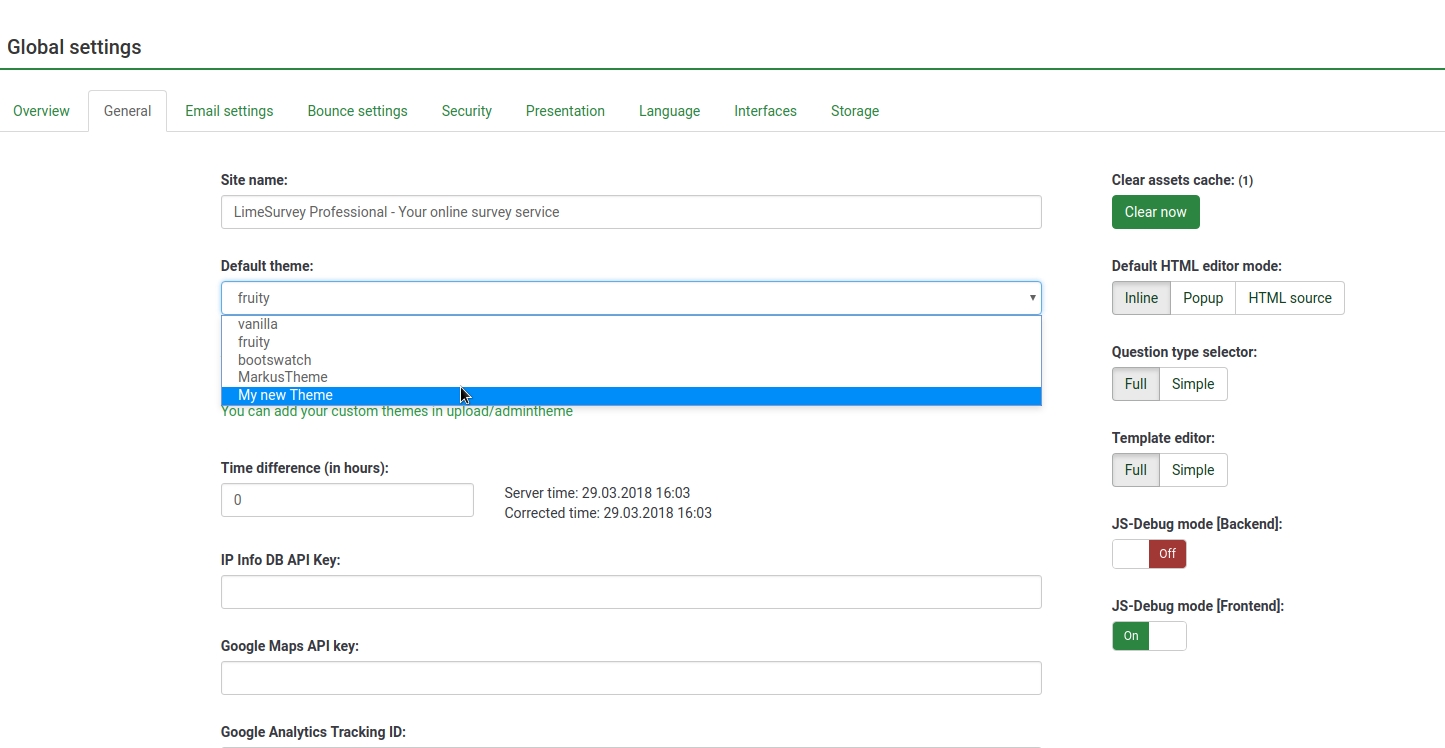
- Change default theme to your extended theme.


Align logo to the centre of the survey page
This example is for the "extends_fruity" template. For other templates the required CSS may be different.
- Login to the LimeSurvey admin area
- Browse to the theme editor: Configuration > Themes
- Find "LimeSurvey Fruity Theme" in the list and click the "Theme Editor" button
- Click "custom.css" in the files list on the left at near the bottom of the page
- Copy the following CSS into that file and press "Save Changes"
.navbar-fixed-top > div.navbar-header {
    width: 100% !important;
}

.navbar-fixed-top > div.navbar-header > div {
    width: 100% !important;
}

.navbar-fixed-top > div.navbar-header > div > img {
    margin: 0 auto 0 auto !important;
}
Custom question views (New in 3.0 )
As of version 2.5, you can create template-specific custom views for questions and some of their incorporated elements. This is useful if you want to modify the HTML layout of a particular question type for one or more surveys.
- In application/config/config.php, find 'config'=>array and add this line to the array : 'allow_templates_to_overwrite_views'=>1
- In /{your_template}/config.xml, set "overwrite_question_views" to true
- Copy application/views/survey/* to template/{your_view_directory}/survey/
- Note that you only need to copy the files that you intend to modify but the file structure must remain the same as in application/views/survey/
Insert custom CSS or JavaScript files for template
As of version 2.50, you can use the config.xml File to Automatically Load Plugin Files.
- Upload your files to the template /css or /scripts folder
- In /{your_template}/config.xml, add the file paths to the <css> or <js> blocks, something like this:
<css>
	<filename>css/jquery-ui-custom.css</filename>
	<filename>css/bootstrap-slider.css</filename>

	<filename>css/awesome-bootstrap-checkbox/awesome-bootstrap-checkbox.css</filename>
	<filename>css/flat_and_modern.css</filename>

	<filename>css/template.css</filename>

	<filename>css/myCustomPlugin.css</filename>
</css>
<js>
	<filename>scripts/template.js</filename>
	<filename>scripts/bootstrap-slider.js</filename>

	<filename>scripts/myCustomPlugin.js</filename>
</js>
Class definitions (for Developers)
answer-list
| Question | Question Type | elements |
|---|---|---|
| arrays/5point | A | tr |
| arrays/10point | B | tr |
| arrays/array | F | tr |
| arrays/column | H | tr and col |
| arrays/dualscale | 1 | tr |
| arrays/increasesamedecrease | E | tr |
| arrays/yesnouncertain | C | tr |
| gender | G | div and ul |
| list_with_comment | O | div |
| ranking | R | ul and div |
| yesno | Y | ul and div |
| ranking_advanced | R | ul and div |
| listradio | L | div |
| 5pointchoice | 5 | ul |
| multiplechoice | M | div |
radio-list
| Question | Question Type | elements |
|---|---|---|
| yesno | Y | ul |
| gender | G | ul |
| arrays/yesnouncertain | C | tr |
| arrays/increasesamedecrease | E | tr |
| arrays/dualscale | 1 | tr |
| arrays/5point | A | table and tr |
| arrays/10point | B | tr |
| arrays/array | F | tr |
| arrays/column | H | col |
| listradio | L | div |
| list_with_comment | O | div followed by ul |
radio-item
| Question | Question Type | elements |
|---|---|---|
| arrays/yesnouncertain | C | td |
| 5pointchoice | 5 | li |
| arrays/10point | B | td |
| arrays/5point | A | td |
| arrays/array | F | td |
| arrays/column | H | td |
| arrays/dualscale | 1 | td |
| arrays/increasesamedecrease | E | td |
| gender | G | li |
| listradio | L | li |
| yesno | Y | li |
| listradio | L | li and div |
| image_select-listradio | L | li and div |
| list_with_comment | 0 | li |
list-group
| Question | Question Type | elements |
|---|---|---|
| yesno | Y | ul |
| 5pointchoice | 5 | ul |
| gender | G | ul |
| ranking | R | ul |
| ranking_advanced | R | ul and div |
| question_index_group_buttons | div | |
| question_index_questions_buttons | div |
list-group-horizontal
| Question | Question Type | elements |
|---|---|---|
| yesno | Y | ul |
| 5pointchoice | 5 | ul |
| gender | G | ul |
list-unstyled
| Question | Question Type | elements |
|---|---|---|
| list_with_comment | 0 | ul |
| listradio | L | ul |
| multiplechoice | M | ul |
| multiplechoice_with_comments | P | ul |
| multiplenumeric | K | ul |
| multipleshorttext | Q | ul |
| ranking | R | ul |
| ranking_advanced | R | ul |
| bootstrap_buttons_multi | M | ul |
| image_select-multiplechoice | M | ul |
| inputondemand/multipleshorttext | Q | ul |
| register_error | ul | |
| register_message | ul | |
| layout_survey_list | ul | |
| load | ul | |
| save | ul | |
| captcha | ul |
select-list
| Question | Question Type | elements |
|---|---|---|
| ranking | R | ul |
| ranking_advanced | R | ul |
checkbox-item
| Question | Question Type | elements |
|---|---|---|
| multiflexi (Array numbers) | : | td |
| multiplechoice | M | li |
| multiplechoice_with_comments | P | div |
| image_select-listradio | L | li |
| image_select-multiplechoice | M | li and div |
| navigator | span |
checkbox-text-item
| Question | Question Type | elements |
|---|---|---|
| multiplechoice_with_comments | P | li |
| multiplechoice | M | li |
| image_select-multiplechoice | M | li |